
OKX Desktop Download: Windows & Mac Client Installation Guide (2026)

Table of contents

Binance new user rewards
20% trading fee rebate
Official Binance registration. Complete identity verification (KYC) to trade and withdraw.
Want to download the OKX desktop app but aren't sure which version to choose for Windows or Mac? Search results are full of Android emulators and various third-party packages — how do you find the correct download entry?
The OKX desktop version doesn't need an Android emulator. Both Windows and Mac have official desktop clients; go to the "Download" page on the OKX official website, find "More clients", and select the matching computer system to install.[1] Users who already have an OKX mobile account also don't need to register again.
First see which situation you're in:
- Windows PC: directly select the Windows desktop client and download the installer.
- Mac M-series or Intel chip: first confirm the chip type, then check whether the macOS package is compatible.
- Can't find the download entry: first look under "More clients" on the official site; don't download third-party repackaged software.
- Install shows a security risk: first verify the file source and signature; don't turn off system security protection directly.
Below we introduce the download and install steps for Windows and Mac separately, and explain how to handle common problems such as an unresponsive download button, Windows security warnings, and Mac "developer cannot be verified".
In the best case you'll be done within 5 minutes. The two easiest places to trip up are: getting the package from third-party software sites, cloud drives, or group files; and hitting "Run anyway" or using a terminal command to bypass system restrictions when you see a Windows or Mac security warning.
1. Where to download the OKX desktop app? How to choose Windows vs Mac
If you've decided to install the OKX desktop app, first open the OKX official website in your browser, go to "Download → More clients", and find the desktop install option.
Windows users select the Windows version; Mac users first check whether the computer uses an Apple chip or an Intel chip, then verify the official package's compatibility.
If the page only shows Android and iPhone download entries, keep looking for "More clients"; don't treat the mobile APK as the Windows installer.
Windows vs Mac download version comparison
| Computer type | Version to select |
|---|---|
| Windows PC | Windows desktop client |
| Mac M-series chip | macOS version; verify Apple Silicon compatibility |
| Mac Intel chip | macOS version; verify Intel compatibility |
Judgment: a Windows package cannot run directly on a Mac. Mac users also can't assume every macOS package will work just because the computer has an M-series chip.
If the official site doesn't provide a client suitable for your current computer, you can consider the web version; don't look for third-party modified versions just to install.
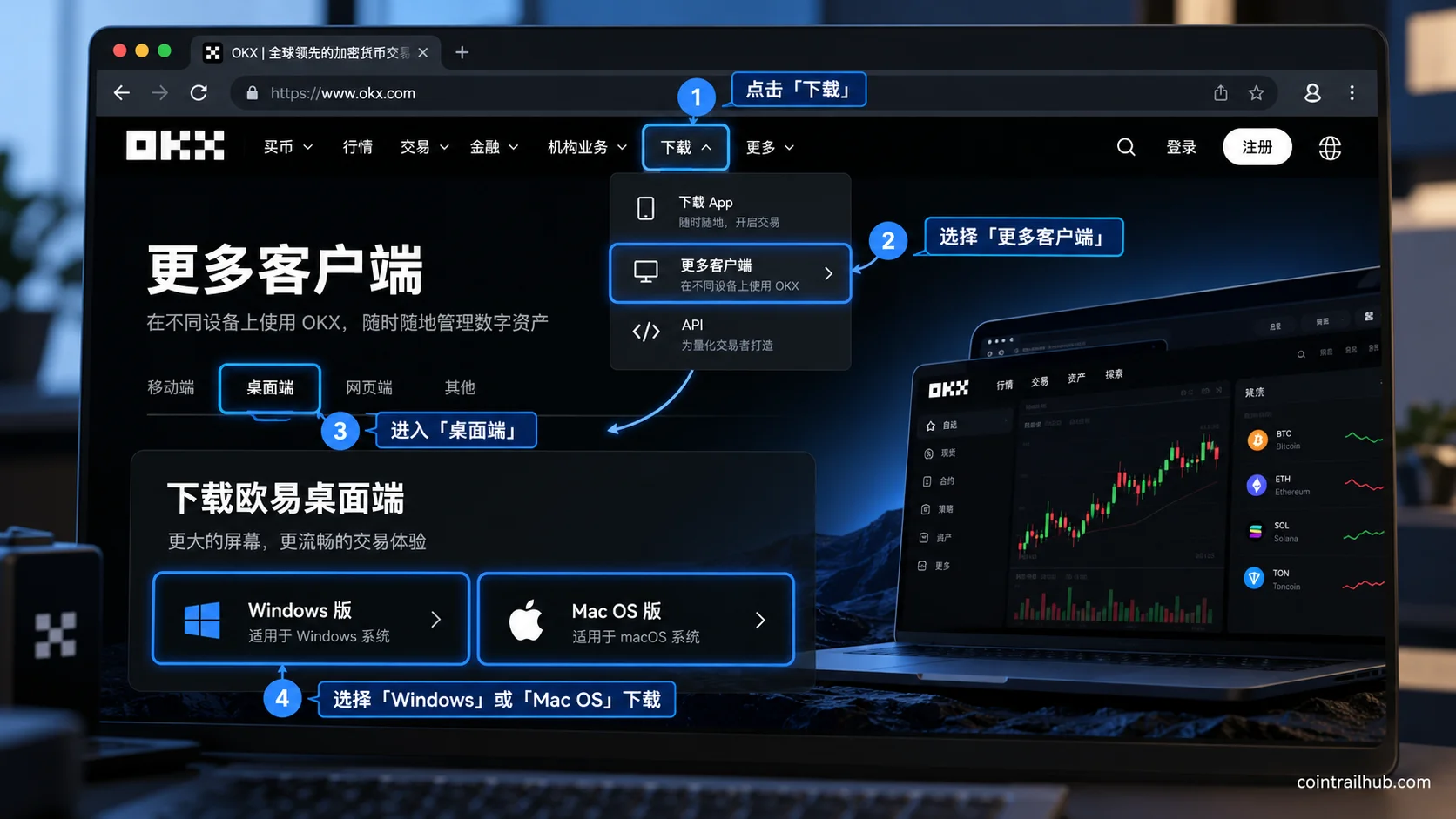
Figure 1: the OKX desktop download path — go to "Download → More clients" on the official site and select the Windows or Mac OS desktop client.
2. How to download the OKX desktop app on Windows? 5 steps to install
Windows users don't need an Android emulator, and don't need to run the mobile app through third-party software. Just use the official OKX Windows desktop client.
Step 1: open the OKX official download and install page
Open Edge, Chrome, or another browser on your computer and go to the OKX official website.
Find "Download" on the page, then select "More clients".
If the download area shows the mobile app first, keep scrolling down or look for the desktop entry.
Judgment: after entering the download page, confirm the real domain in the browser; don't rely on the page showing the OKX logo.
Step 2: download the Windows desktop client
Find the Windows option in the desktop download area and click download.
Once the browser starts downloading, you can check the file progress through the download icon in the top-right corner.
After the download completes, find the installer in your computer's "Downloads" folder.
The Windows installer may use a .exe or other file format; refer to the current version the official site provides.
Note: an Android APK file is not a native Windows client package. If you get an APK, don't treat it as the desktop install.
Step 3: check the file before installing
Find the downloaded installer and don't double-click it in a hurry.
You can right-click the file and select "Properties" to view file information.
If there is a "Digital Signatures" tab, you can also check the signature and verification result.
We recommend checking these four points:
- Whether the installer came from the OKX official download page you opened yourself.
- Whether the file has abnormal signature or integrity issues.
- Whether Windows security software reports a malicious program.
- Whether the install requires downloading additional software of unknown origin.
Judgment: a package that can run doesn't mean it's safe. The file source matters more than the icon and file name.
A digital signature can help verify the file, but it can't prove by itself that the installer is completely safe.
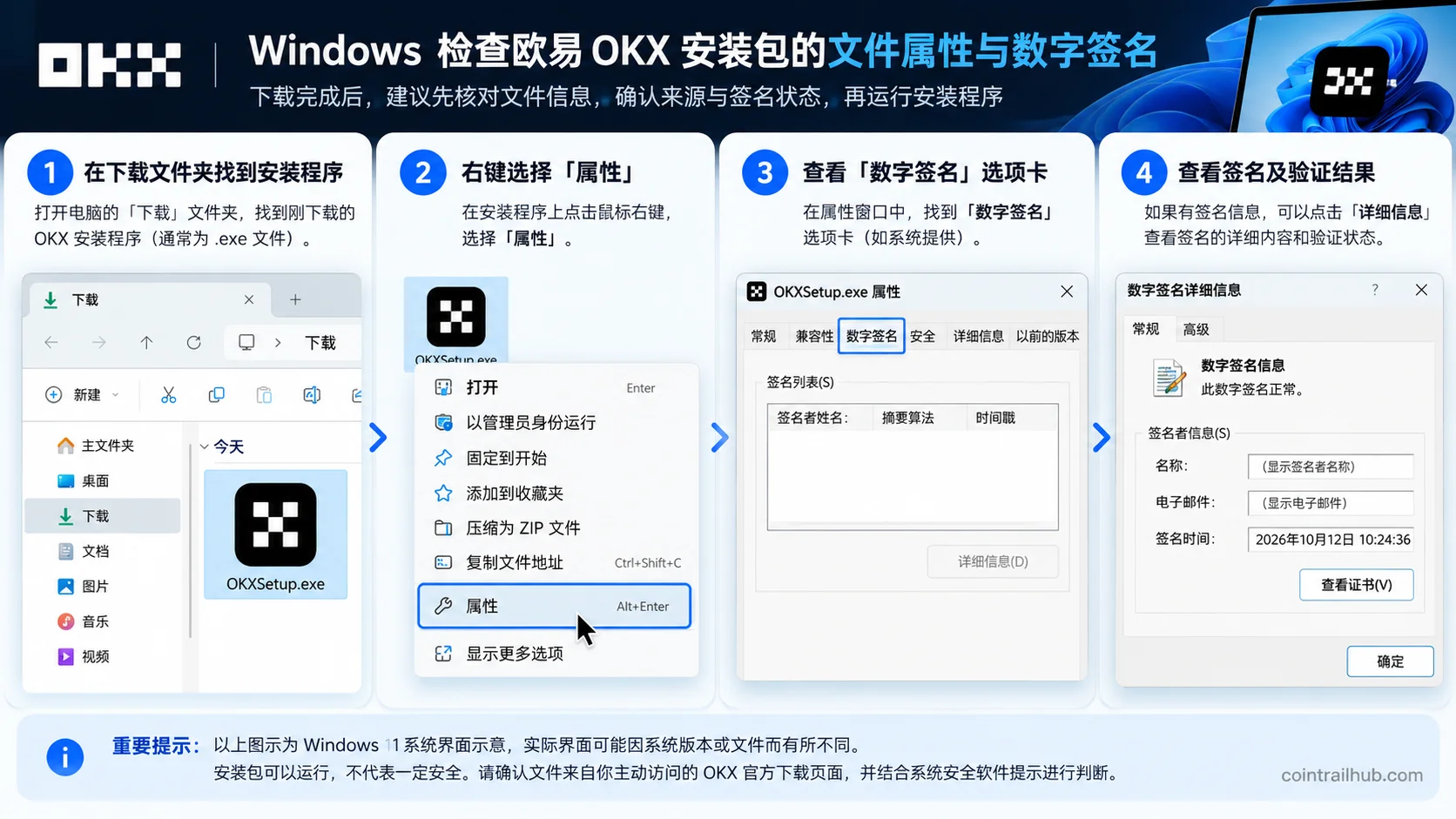
Figure 2: before installing OKX on Windows, check the install file's properties and digital signature; the specific signature information depends on the actual official package.
Step 4: run the Windows installer
After confirming the package source and file information have no anomalies, double-click to run the installer.
Complete the installation by following the current install wizard.
After installation, you can launch OKX from the Windows Start menu or a desktop shortcut.
If the computer shows a prompt like "Windows protected your PC", first verify the file source and security status; don't click to bypass the warning without checking.
Judgment: if the displayed publisher, signature verification result, or security warning has unexplained anomalies, pause the installation instead of forcing it to run.
Step 5: open the OKX desktop app and log in
After launching the OKX desktop client, log in to your account as the interface directs.
If you already registered on mobile, you can usually log in with the original account directly; no need to register again.
When logging in on a new device, the platform may require email verification code, an authenticator, or other security verification.
Signs of a successful install: the client starts normally, you can enter your account through the official login flow, and you can see the available account features.
The desktop and mobile versions usually use the same OKX account; you don't need to transfer assets to switch devices.
If someone asks you to send crypto as a "desktop activation fee", don't proceed.
3. How to download the OKX desktop app on Mac? M-series and Intel install guide
Mac users most easily hit two problems: not knowing which package to choose, and seeing prompts like "developer cannot be verified" after downloading.
Check your Mac's chip type before installing to reduce the chance of downloading the wrong version.
Step 1: check whether your Mac uses an M-series or Intel chip
Click the Apple menu in the top-left corner of the screen and select "About This Mac".
Look at the "Chip" or "Processor" information.
| What About This Mac shows | Chip type |
|---|---|
| Apple M1, M2, M3, M4, etc. | Apple Silicon |
| Intel Core i5, i7, i9, etc. | Intel |
Judgment: whether your Mac uses Apple Silicon or Intel affects software compatibility, but it doesn't mean OKX necessarily provides two separate install files.
If the official site provides a universal macOS package, check further which processors and system versions it supports.
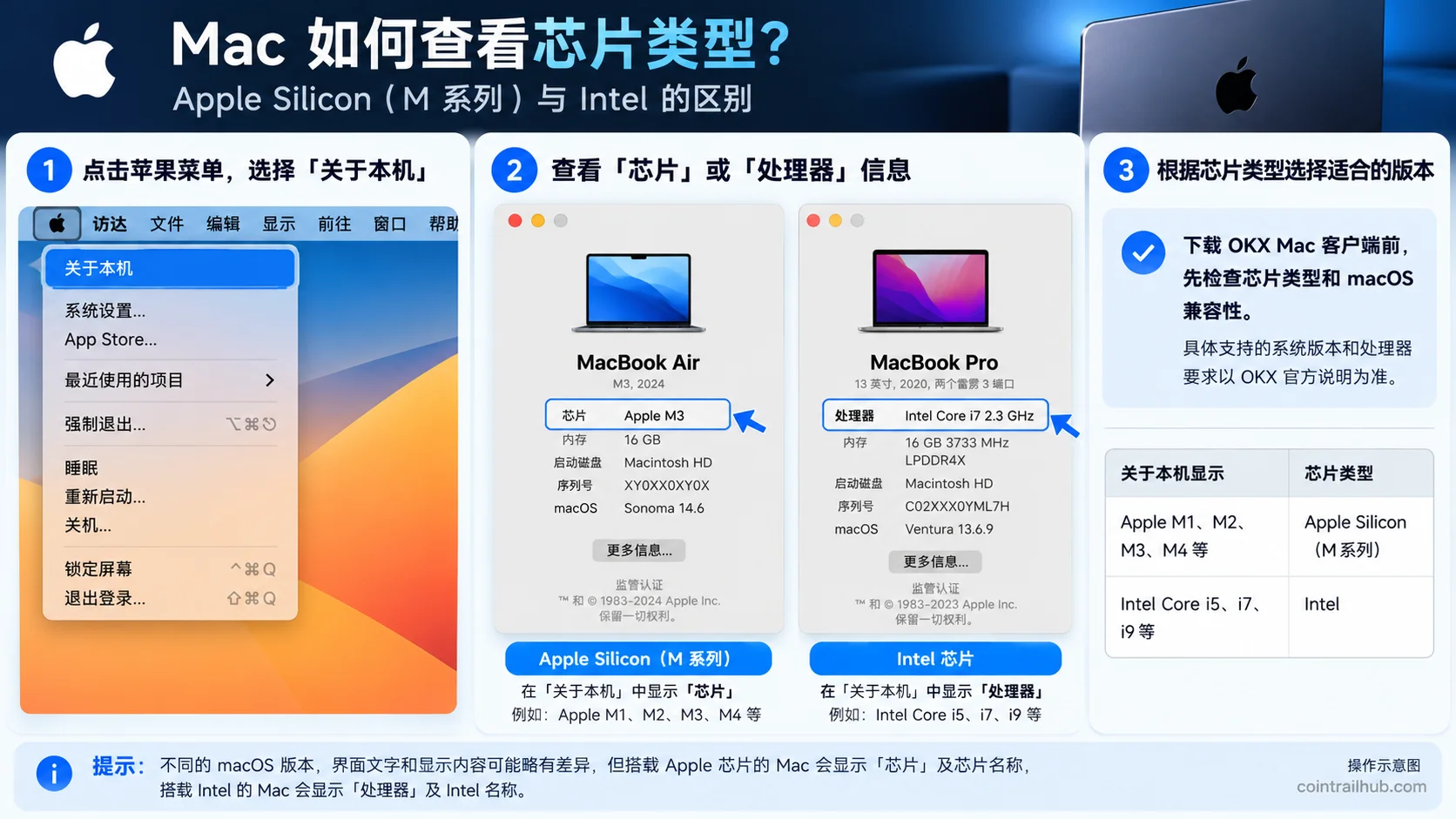
Figure 3: checking your Mac's chip type — click "Apple menu → About This Mac" and look at the "Chip" or "Processor" information, then verify macOS compatibility before installing OKX.
Step 2: download the official Mac client
Open the OKX official website and go to "Download → More clients".
Find the desktop download area and select Mac OS.
Before downloading, check the official site's current compatibility requirements and confirm the package suits your Mac.
If the official site doesn't show a clear macOS download option, check the official help center.
Don't get unverified DMG files from cloud drives, group chats, or third-party software download sites.
Step 3: install the macOS client
If the official site provides a .dmg file, you can usually install it like this:
- Open your Mac's "Downloads" folder.
- Find the DMG file you just downloaded.
- Double-click to open the disk image.
- If an app drag window appears, drag the program to the "Applications" folder.
- Launch OKX from the "Applications" folder.
If the official site provides an installer in another format, follow its actual install prompts.
After installation, log in to your original OKX account as the client requires.
Step 4: what to do when Mac shows "developer cannot be verified"
Some Mac users installing apps distributed through third-party channels may see:
- Developer cannot be verified.
- The app cannot be opened.
- The app is damaged.
- This app is incompatible with the current Mac.
These prompts don't mean the same problem, and they're handled differently.
If it says "developer cannot be verified":
First check whether the package came from a trusted official channel and whether the file signature and integrity are normal.
macOS applies security checks to apps not from the App Store. Only when you can independently confirm the app is safe and the system reports no malware or file corruption should you consider handling the open restriction according to Apple's official guidance.
If it says the app is damaged:
Don't use a terminal command directly to lift the system security restriction.
First delete the abnormal file, then verify and re-download through the official channel.
If it says incompatible:
Check the macOS version, processor type, and the system requirements the package currently supports.
Judgment: a Mac install failure isn't necessarily a wrong download address; it could be a chip, system version, or file integrity issue. Determine the cause first, then decide whether to re-download.
4. What to do when the OKX desktop download or install fails
If the OKX desktop download fails, don't immediately switch packages.
First confirm which step the problem is at: can't find the entry, download blocked, install failed, or can't start after install.
Common failure comparison table
| Problem | Priority check |
|---|---|
| Can't find the download entry | Look under "More clients" on the official site |
| Clicking download does nothing | Check the browser download history and prompts |
| Windows shows a security warning | Verify the file source and signature |
| Mac package won't open | Verify macOS version and chip compatibility |
| Won't start after install | Check the system, file integrity, and error prompt |
| Client can't log in | Check account information and security verification |
Judgment: a download failure and a login failure are not the same problem; troubleshooting by the current error is usually more effective than repeatedly downloading and installing.
1. Clicking the download button does nothing
First check the browser download history to confirm whether the file actually started downloading.
If it didn't start, check the network connection, or try another normally-updated browser.
If the browser clearly warns that the file is risky, investigate the reason first; don't turn off the browser's security feature directly.
2. Windows shows "Windows protected your PC"
This usually relates to the Windows SmartScreen security check.
A SmartScreen warning doesn't necessarily mean the program has been confirmed as malware, but you also can't just treat it as a false positive.
Re-verify the package source, digital signature, and file information.
Handling principle: before completing a security check, it's not recommended to bypass the warning through actions like "Run anyway".
3. Mac shows "the app is damaged"
This prompt is handled the same way as "developer cannot be verified" in section 3: first verify the package source, integrity, and system compatibility; if there's an abnormal signature or a clear corruption prompt, stop and get the file again through the official channel; don't use a terminal command to lift the macOS security check.
4. The client won't open after install
Check in order:
- Whether the computer's system version is supported.
- Whether the install file is complete.
- Whether there's a system security block.
- Whether the network is normal.
- Whether the client shows a specific error message.
If it still can't be resolved, record the error and handle it through OKX's official support channel.
Don't allow strangers to operate your trading account through remote control software.
5. The client opens but can't log in
If the program starts normally, the problem may be at the account verification stage.
First check whether the login email, phone number, and password are correct, then complete the verification code or other security verification as the official page directs.
If you can't receive the verification code, troubleshoot through the official account recovery flow; don't try repeatedly or give the code to others.
5. How to tell a real OKX desktop package from a fake one
When searching "OKX desktop download", you may encounter third-party sites whose names contain OKX or similar wording.
Some sites use icons, colors, and download buttons similar to the official ones, but page appearance doesn't prove their identity.
To judge the download source, verify the actual domain first.
Which download sources should you be cautious about?
| Download source | How to judge |
|---|---|
| OKX official download page | Verify the real domain and official entry |
| Other domains containing "OKX" | Verify independently through official channels |
| Third-party software sites | Not a trusted official package source |
| Cloud drive and group-chat files | Don't install if authenticity can't be confirmed |
Judgment: a URL containing "OKX" doesn't mean the site belongs to OKX. Check the actual registered domain and, if necessary, verify through OKX's official channel verification service.[2]
Also, stop the operation if the download and install process involves any of the following demands:
- Asking for your account password or login verification code.
- Asking for your wallet seed phrase or private key.
- Requiring you to turn off antivirus software to install.
- Requiring remote control software to set up the account.
- Requiring you to send crypto as an install or activation fee.
- Claiming to provide a no-KYC version, cracked version, or special modified version.
What really matters isn't how much the download page looks like the official site, but whether you can confirm the file came from a trusted channel.
6. What's the difference between the OKX desktop app and the web version?
If you just want to use OKX on a computer, you don't necessarily have to install the desktop client.
OKX provides a web version and desktop clients for supported systems. Both can access the same account, but the experience differs.
OKX desktop, web, and mobile app comparison
| Usage method | Suitable scenario |
|---|---|
| Windows / Mac client | Wanting a standalone program on the computer |
| Web version | Occasional use, don't want to install software |
| Mobile app | Mobile use and routine account verification |
How to choose?
If you use the computer frequently and want to access your account through a standalone client, consider installing the desktop app.
If you only check the market or use your account occasionally, the web version usually meets basic needs.
The mobile app is better for mobile scenarios and some account security verification operations.
Note that installing the desktop app doesn't automatically add account privileges, nor does using the desktop client lower your trading fees.
Specific features depend on the services OKX currently provides and your region's account privileges.
7. How to log in and set up the account after installing the OKX desktop app
Users who already have an OKX mobile account can usually log in to the original account directly in the desktop client.
First-time OKX users need to create an account through the official registration flow.
1. Already registered with OKX: log in directly
Open the installed OKX client and select a currently supported login method.
Enter your account information as prompted and complete the necessary security verification.
Logging in with the same account doesn't require transferring mobile assets to a so-called "desktop account".
2. No account yet: register through the official flow
New users can create an account through OKX's official registration flow, selecting their country or region of residence, filling in an email, and completing verification as the actual page directs. The specific flow is covered in How to Register for OKX.
If the registration page provides an invitation code field, you can use OK800.
Fee rebates and activity benefits are subject to what your account actually shows and the applicable terms.
3. Complete identity verification (KYC)
Complete the necessary identity verification according to the platform's requirements and the applicable rules in your region.
Identity verification may involve personal information, ID documents, and facial verification steps; follow the actual flow.
Users who haven't completed verification can see OKX KYC Verification Guide.
4. Enable account security protection
We recommend checking the security features your account currently supports, including an authenticator, passkey, device management, and security notifications.
Don't rely on the login password alone to protect your account.
Judgment: a successful install only completes the client setup; it doesn't mean the account has passed identity verification, nor that all trading or withdrawal features are immediately available.
8. OKX desktop download FAQ
Q1: Does OKX have a desktop version?
Yes. OKX provides Windows and macOS desktop clients, which you can find under "Download → More clients" on the official site.[3]
Q2: Is the OKX desktop version free?
The official desktop client download doesn't require an install fee. Trading, withdrawal, and other services may incur corresponding fees, which are not the same as installing the client.
Q3: Do I need an Android emulator to download OKX on Windows?
No. Windows users can directly download the official Windows desktop client; there's no need to run the mobile app through an Android emulator.
Q4: Can Mac M1, M2, M3, or M4 install OKX?
You need to verify the Apple Silicon compatibility of OKX's current macOS package and the system version your device uses. You can't judge by the chip model alone whether every install version applies.[4]
Q5: Are the OKX desktop and mobile app accounts the same?
Normally you can log in to the same OKX account; there's no need to register two accounts separately or transfer assets between devices.
Q6: What if the OKX desktop download or install fails?
First confirm whether the problem is the download entry, file retrieval, system compatibility, or security check, then troubleshoot by the corresponding error. Don't directly download third-party modified installers.
Q7: What if Mac shows "developer cannot be verified" when installing OKX?
First verify the file source, signature, integrity, and system compatibility. If you can't confirm safety, don't bypass macOS's security check.
Q8: Which is better, the OKX desktop app or the web version?
If you frequently use a standalone program on the computer, consider the desktop client; if you log in occasionally or don't want to install software, the web version is more convenient. Account features depend on what the platform currently supports.
Q9: Why can't I find the OKX desktop download entry?
It may be that different language or region pages show it in different places. First check "More clients" on the official site or the official help center. If the current page doesn't provide a matching version, don't get it from unverified third-party sites.
Summary: how to download the OKX desktop app?
Windows PC: open the OKX official website, find "Download → More clients", select the Windows desktop client, verify the package source, and finish installing.
Mac: first check the chip type in "About This Mac", then get the applicable macOS package from the official site and confirm system compatibility.
Install failure: troubleshoot separately by download failure, system security warning, compatibility issue, or login failure; don't turn off security software directly, and don't install clients from unknown sources.
If you don't need a standalone desktop program, using the OKX web version is also an option.
The most important thing is: choose the official package that suits your computer, confirm the source and compatibility, and then finish the install and account login.
Recommended reading
- How to Register for OKX — email registration, invitation code, and account security setup
- OKX KYC Verification Guide — identity verification flow and common problems
- Binance Desktop Download 2026: Windows/Mac Client Installation Guide — Binance desktop install method
Data verification notes
Key facts in this article were verified against official OKX documentation on 2026-10-16, item by item:
- Desktop client support:OKX provides Windows and macOS desktop clients, obtainable through "Download → More clients" on the official site, without needing an Android emulator. Source: OKX official download center.
- Official channel verification:a URL containing "OKX" doesn't mean the site belongs to OKX; check the actual registered domain and verify through OKX's official channel. Source: OKX official channels summary.
- Whether a desktop version exists:OKX officially provides Windows and macOS desktop clients. Source: OKX official help: download and register OKX (desktop users).
- Mac compatibility:the official download page lists the system and processor requirements for the macOS package; verify the chip and system version against the current page rather than judging by the chip model alone. Source: OKX official download center.
Disclaimer
This article only explains the OKX desktop download, Windows and Mac installation methods, and common security issues. It is not investment advice.
Crypto assets carry market, platform, network, and operational risks. A successful software download doesn't mean you automatically gain eligibility for all services; specifics depend on the applicable laws and regulations in your region, your account status, and the platform's rules.
Don't reveal your password, verification code, seed phrase, or private key to anyone, and don't install software whose source you can't confirm.
- 2026-10-16UpdateAdded evidence superscripts and Data Verification Notes; updated the key fact verification date.
- 2026-10-12UpdateFirst published; organized the Windows/Mac desktop client download, installation, and security check flow.
- 2026-10-13UpdateAdjusted the search-intent framing and moved download steps to the front; optimized the Windows/Mac version selection and troubleshooting, condensed repeated security prompts, and improved the FAQ and official source notes.
See ourEditorial Policy and the correction process in ourCorrections Policy.
The CoinTrailHub editorial team focuses on crypto education for beginners, exchange security and P2P trading risk. This article is compiled from official sources and public data, reviewed by humans, and strives for accuracy but is not investment advice.
Last updated:2026-10-13 · Content reviewed by humans · Learn more
© 2026 CoinTrailHub · Original content. Reproduction or rewriting without permission is prohibited.