
Binance Desktop Download 2026: Official Windows/Mac Client Install Guide

Table of contents

Binance new user rewards
20% trading fee rebate
Official Binance registration. Complete identity verification (KYC) to trade and withdraw.
How do I download the Binance desktop app? Which version should I download for Windows vs Mac? If you can't find the Mac download button on the Binance website, or you get "can't install" or "Windows protected your PC" after downloading, don't turn to a third-party download site and don't turn off your computer's security protection.
In 2026, Binance offers Windows, macOS and Linux desktop clients. Windows users can download from the Binance official website; Mac users who only see Windows on the download page can check the macOS download option in another language version of the Binance website.
Conclusion first:
- Windows PC: go to the Binance website, choose the Windows desktop client, download, install and sign in — no Android emulator needed.
- Mac M1/M2/M3/M4 etc.: these are Apple chips; before downloading, confirm the macOS installer is compatible with Apple Silicon.
- Mac Intel: first confirm the installer supports Intel processors — don't treat every Mac installer as a universal build.
- Just want to buy/sell or check the market on a computer: you don't necessarily need to install the client — signing in to the Binance web version directly also works.
- Installer source unclear or the system reports a security anomaly: stop the install — don't turn off security protection just to run the program.
The most direct judgment: to download the Windows desktop version, first find the official Windows entry; to download the Mac desktop version, first confirm the chip, then find the official macOS-compatible version.
This article starts from the official download entry, explains the Windows and Mac install steps separately, and resolves problems like a missing download button, an installer that won't open, system security prompts and login failures.
With luck you can be done in about 5 minutes. The two easiest places to trip up: downloading an incompatible installer because you didn't tell Mac M-series from Intel, and turning to a third-party download site when you can't find the Mac entry on the Chinese download page.
1. Which Binance desktop version to download? Start with the system comparison table
The Binance desktop app is a desktop application provided by Binance. On supported computer systems, it lets you sign in to your account, check the market and use related trading features.
It uses the same Binance account as the mobile app and the web version, but the interface and some features may differ.
| Computer type | Version to download | Confirm before installing |
|---|---|---|
| Windows PC | Windows desktop client | System version and installer source |
| Mac M-series chip | macOS-compatible build | Apple Silicon compatibility |
| Mac Intel chip | macOS-compatible build | Intel compatibility |
| Linux PC | Corresponding Linux build | System architecture and install format |
Version judgment: the Windows installer can't be used directly on Mac, and the Mac installer can't be used directly on Windows.[1] Even among Mac computers, different chips and system versions may have compatibility differences.
Three-step desktop install flow
- Open the Binance website: type
binance.cominto the browser address bar and open the official software download page. - Choose your system: choose Windows for Windows; for Mac, first identify the chip, then choose a supported macOS installer.
- Install and sign in: check the installer source, run the installer, and complete the account security verification.
If the installer asks you to disable antivirus software, provide a private key, or contact a stranger to remotely control your computer, don't continue.
2. How to download the Windows Binance desktop app? Official install tutorial
Windows users don't need to install a phone emulator first, and don't need to buy third-party software.
The normal flow is to go to the Binance website, download the Windows installer, then complete the install following the system prompts.
Step 1: Enter the Binance official download page
Open Microsoft Edge, Chrome or another commonly used browser.
Manually type the official Binance domain binance.com into the address bar to enter the website.
Find the "Download" entry on the page and enter the official software download section.
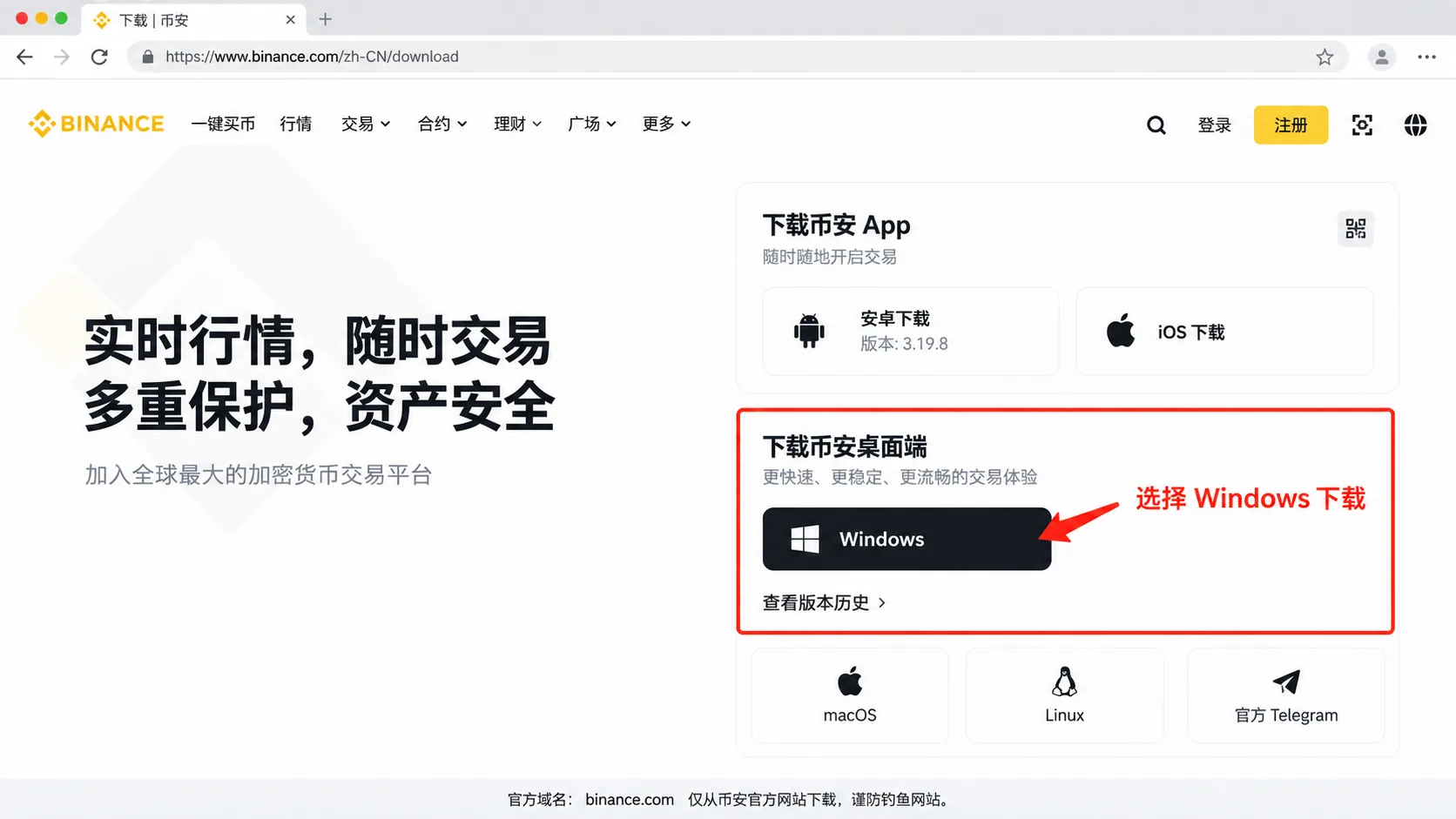
The Binance download page provides a "Download Binance desktop" section where Windows users can start.[2]
Judgment: if the download page redirects to an unfamiliar cloud drive, a third-party software site, or asks you to add a "support agent" to receive the installer, stop.
Especially don't judge authenticity by search-result titles like "official genuine version" or "latest Binance desktop version".
Step 2: Choose the Windows desktop client
After entering the official download section, find "Download Binance desktop" and choose Windows.
Once the browser starts downloading, open the download history and confirm you got a computer installer, not an Android APK file.
If the page doesn't currently show a download button, try another language version of the Binance website or the desktop client page.
Judgment: Windows users should download the official Windows installer. A so-called "desktop version" that needs an Android emulator to run is not the native desktop-client install method described here.
Step 3: Check the installer after downloading
Find the file you just downloaded in the computer's "Downloads" folder.
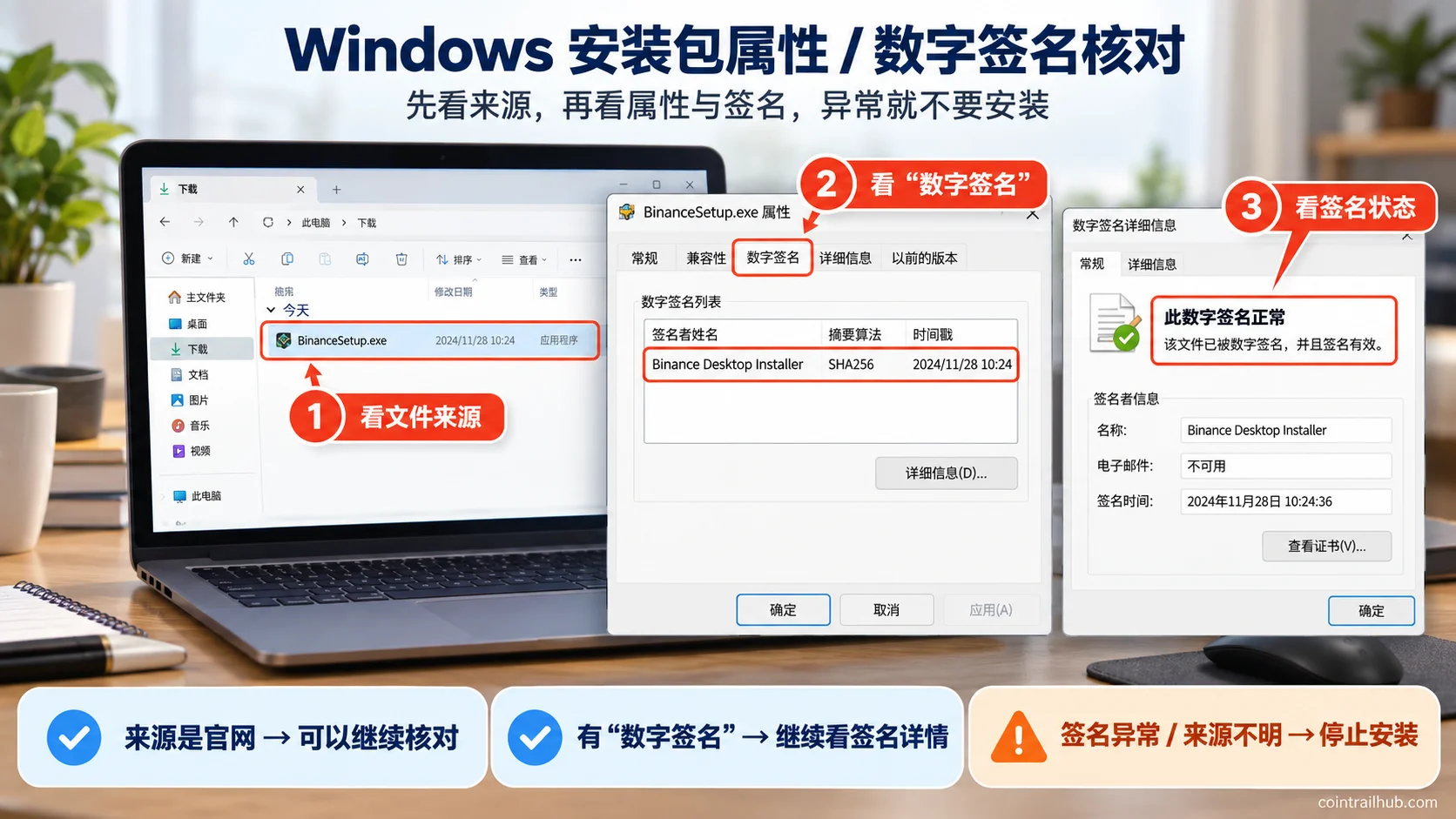
Right-click the installer and choose "Properties".
If there's a "Digital Signatures" tab, open it to view the signature details and verification status.
Check three things:
- Whether the file came from the Binance official website you actively visited.
- Whether the installer is compatible with your current Windows system.
- Whether the file has an abnormal signature or a clear malware warning.
Some installers may not display digital-signature info in the same way — you can't judge authenticity just by whether a tab exists.
Judgment: an installer that runs doesn't mean it's the official genuine version. If the source is unclear, the signature is abnormal, or security software clearly flags it as malicious, stop the install.
Don't force the install by renaming the file, disabling Defender or bypassing security protection.
Step 4: Run the Windows installer
After confirming the file source, double-click the installer.
Complete the install following the steps the current installer shows. The installer wizard's specific interface may change with versions.
After installing, launch the Binance desktop client from the Windows Start menu or the corresponding shortcut.
On first run, if Windows shows a SmartScreen security prompt, check the file source and signature first — don't just click to bypass the warning.
Judgment: if the publisher, signature or install source the system shows doesn't match the official info you checked, stop the install and get the official installer again.
Step 5: Open the Binance desktop app and sign in
After launching the Binance client, choose a currently supported sign-in method.
Users who already have a Binance account sign in with their original account directly — no need to re-register.
If the client offers QR code login, you should personally open the login QR code in the official client, then scan it to confirm using the official Binance app as prompted.
Signing in on a new device may require email verification, authenticator verification, Passkey verification or other security checks.
Judgment: the desktop version signs in to the same Binance account — you don't need to transfer the USDT from your phone account to a separate "desktop account".
If someone asks you to transfer coins to "activate" the desktop version, stop.
3. How to download the Mac Binance desktop app? M-series vs Intel chip
The most common problem for Mac users is seeing only the Windows download button after entering the Binance download page.
This doesn't mean Binance has no macOS client.
The Binance official English download page and the desktop page provide a macOS download entry.[3] Different language pages may display differently, so Mac users should prioritize finding the official Mac install option rather than searching for an installer on third-party sites.
Step 1: Determine whether your Mac is M-series or Intel
Click the Apple menu in the top-left corner of the Mac screen and choose "About This Mac".
Check the chip or processor info the system shows.
| What it shows | Mac chip type | Compatibility to check |
|---|---|---|
| Apple M1, M2, M3, M4 etc. | Apple chip | Apple Silicon / ARM64 |
| Intel Core i5, i7, i9 etc. | Intel chip | Intel / x86_64 |
If "About This Mac" shows Apple M2, it's an Apple-chip Mac.
If it shows Intel Core i7, it's an Intel-chip Mac.
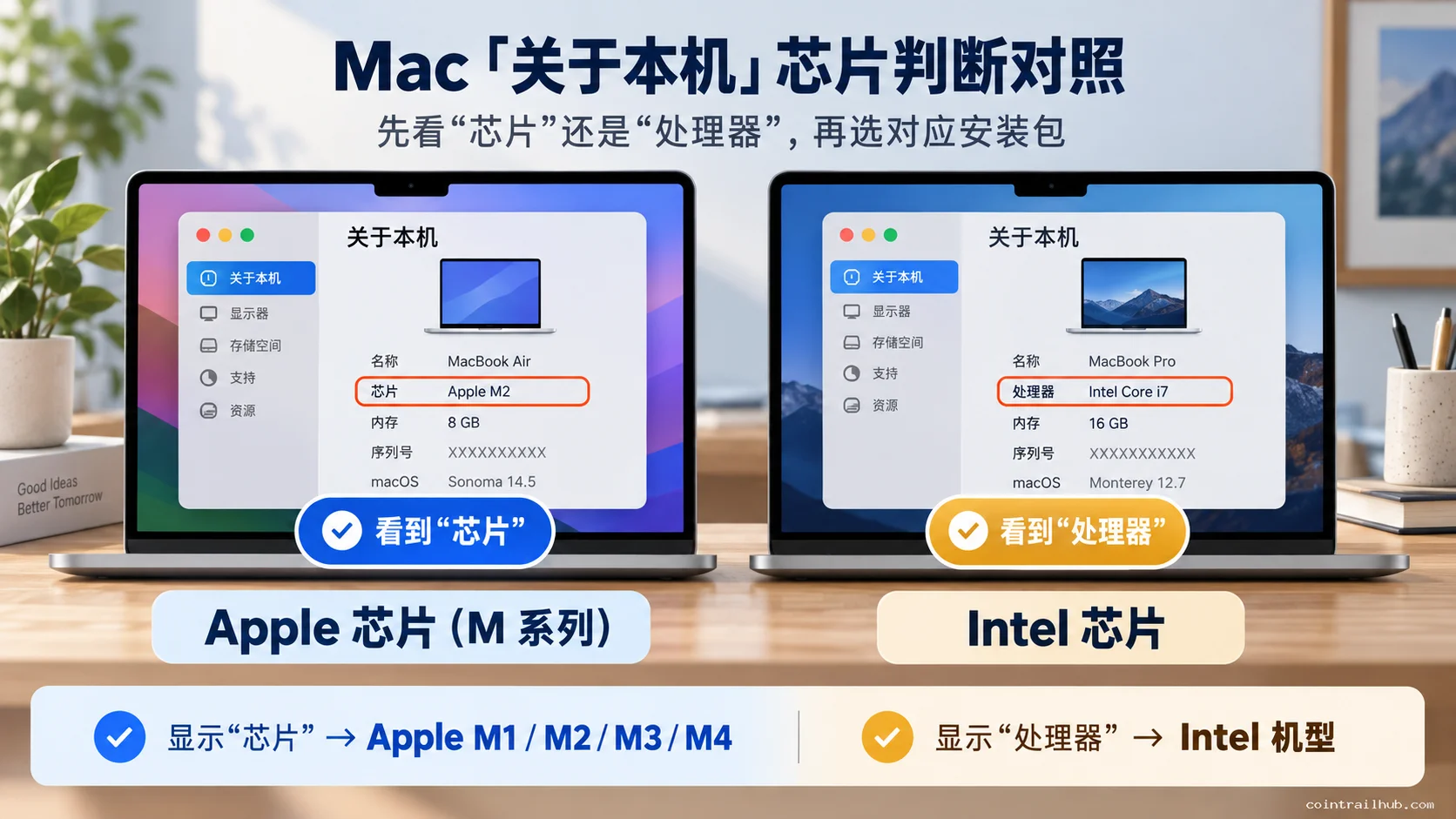
Judgment: the Mac chip type determines which processor compatibility you need to check, but it doesn't mean Binance necessarily provides two separate Mac installers.
If the official download page has only one macOS installer, first check whether it supports your current processor, rather than blindly hunting for a so-called M1-only or Intel-only version.
Step 2: Find the official macOS download entry
After confirming the chip type, enter the Binance website in the browser.
Look in this order:
- Open the Binance official website.
- Enter the "Download" page.
- Look for Desktop or the macOS option.
- If the Chinese download page only shows Windows, check another language version of the Binance download page.
- Find the macOS download option and check the system and chip compatibility conditions.
Binance also maintains a GitHub release channel for the desktop client, which can be used to check historical release info — but you shouldn't treat a historical "Latest" tag on GitHub as the official website's current latest install version.[4]
Judgment: if the Chinese page has no Mac button, look for another official Binance page first — don't switch to a third-party software site.
Step 3: Download and install the Mac client
After choosing the official macOS-compatible installer, complete the download.
If you download a .dmg file, you can usually double-click to open the disk image, then follow the install instructions inside.
Some Mac apps install by dragging to the "Applications" folder, and other install flows are possible.
Follow what the current official installer shows.
After installing, open Binance from the "Applications" folder or Launchpad.
Step 4: What if the Mac says the app can't be opened?
If macOS shows "can't be opened", "can't verify the developer", "app is damaged" or "incompatible with this Mac", don't bypass the system protection.
Check in order:
- Whether the installer came from an official Binance channel.
- Whether the download was interrupted.
- Whether your current macOS version meets the requirement.
- Whether the installer supports your current Mac processor.
- Whether macOS reports a signature, integrity or security problem.
Judgment: "incompatible with this Mac" — prioritize checking the system and chip; an abnormal signature, damaged file or unclear source — prioritize checking file security and don't turn off Gatekeeper directly.
If there's no official installer whose compatibility you can confirm right now, use the web version instead of forcing an unknown program to install.
Step 5: Sign in to the Mac Binance client
After launching the client normally, sign in with your existing Binance account.
The Mac desktop app and the mobile app can use the same account — account assets don't need to be migrated separately.
Signing in on a new device may trigger security verification; complete it following the steps the official client shows.
Judgment: if the Mac client can't install but the Binance web version works normally, you don't need to install an unofficial replacement program just to trade on a computer.
4. Binance desktop won't download or install — what to do?
Download failure and install failure are not the same problem.
If the download button is missing, check the official download page; if the installer won't open, check the file and system; if the client launches but can't sign in, check the account or security verification further.
Common troubleshooting table
| Problem | Check first | How to handle |
|---|---|---|
| Can't find the Windows download button | Whether you're on the correct official page | Check the official desktop download section |
| Can't find the Mac download button | Whether the language page only shows Windows | Check another official language page |
| Download button doesn't respond | Browser download history, network and security blocks | Check the prompt and retry |
| Windows security warning | File source and digital signature | Stop if the source is unclear |
| Mac installer won't open | System version, chip and file integrity | Confirm compatibility and re-get it |
| Can't sign in after installing | Account info, network and security verification | Troubleshoot per the official sign-in prompt |
Troubleshooting conclusion: first determine which step the failure happens at, then handle the corresponding cause — don't swap installers at the first sign of a problem.
1. The download button doesn't respond when clicked
First check the download history in the top-right of the browser to see whether the download started or was blocked by the browser.
Then check the network connection and whether the browser shows a clear security prompt.
If a security tool blocked a suspicious download, don't turn it off directly.
2. Windows says "Windows protected your PC"
This prompt is usually related to Windows SmartScreen security checks.
It doesn't necessarily prove the file is malicious, but you can't directly conclude it's a false positive either.
Re-confirm the official download source, the installer properties and the signature verification info.
Judgment: before completing the security check, it's not advisable to bypass the warning through "Run anyway".
3. Mac shows "can't install" after downloading
First check whether you picked the wrong installer.
The Windows installer can't run directly in macOS; a macOS installer may also be limited by system version and processor compatibility.
If the file source is fine but it still won't run, check Binance's current official system requirements.
Judgment: when the system is incompatible, prefer the web version rather than modifying system security settings or installing an unknown "compatibility patch".
4. Installed but the client won't open
Exit the program normally first, then restart the computer or the app.
Check the operating system version, network connection and the client's error prompt.
If the problem persists, get support through an official Binance channel.
Don't let a stranger handle your account through Telegram, WeChat groups or remote-control software.
5. The client opens but can't sign in
Login failure may be related to account password, two-factor verification, network connection, device security checks or regional service restrictions.
If the mobile app signs in normally but the desktop version can't, first look at the error prompt the client gives.
Judgment: the client installing successfully doesn't mean all trading features are open. Whether an account can use a specific product still depends on identity verification, region of residence and platform rules.
5. How to confirm you downloaded the official genuine Binance client?
One of the biggest security risks of the desktop app is downloading an installer that impersonates Binance.
A fake client may copy the Binance icon and login screen, and may use a similar-looking URL or filename.
To judge reliability, look first at the source, then the installer, then whether the login process is normal.
| Check item | Normal verification | High-risk signal |
|---|---|---|
| Download source | Obtained from an official Binance channel | Unfamiliar cloud drive, third-party software site |
| Installer | Check system compatibility and file info | Cracked, no-KYC, special "accelerated" versions |
| Digital signature | Check the signature status and source | Abnormal signature or unverifiable source |
| Account login | Complete verification in the official client | A stranger asking for your password or verification code |
Security judgment: if the source or file authenticity can't be confirmed, don't enter your account password even if the installer opens normally.
Also pay special attention to:
Don't scan a login QR code sent by a stranger. Normal QR code login should be initiated by you personally opening the official login screen.
Don't let a stranger remotely control your computer. A so-called "support agent" asking to share your screen, install remote-assist tools or provide a verification code is a signal to be wary of.
Don't check only the first and last few characters of a withdrawal address. Malware may replace the receiving address in your clipboard. Before sending assets, check the full address, network and recipient info.
6. What's the difference between the Binance desktop app, web version and mobile app?
The Binance desktop app, web version and mobile app can all access the same Binance account, but they operate differently.
The desktop app is a standalone program installed on the computer; the web version is accessed through a browser; the mobile app mainly targets Android and iOS.
Three ways compared
| Usage method | Main feature | When it suits |
|---|---|---|
| Desktop client | Desktop operation, large-screen market view | Using a computer for long periods |
| Web version | No standalone program to install | Occasional login, temporary use |
| Mobile app | Mobile operation, convenient for verification | Daily use and on-the-go |
Usage judgment:
- If you often watch the market and need continuous operation on a computer, consider installing the desktop client.
- If you only occasionally check the market or buy/sell assets, the web version usually meets basic needs.
- If you're often out and about, the mobile app is more convenient.
Installing the desktop app doesn't automatically increase your account's trading permissions, nor does it lower normal trading fees.
For users already using the Binance mobile app, the desktop client is just another way to use it — no extra account needed.
7. What to do first after installing the Binance desktop app?
For first-time Binance users, it's not advisable to deposit directly before confirming account and device security.
It's recommended to complete basic setup in the following order.
Step 1: Register or sign in to a Binance account
Users who already have an account sign in directly.
New users can read Binance registration tutorial 2026: ID KYC + face verification full flow (20% rebate · tested) for the complete registration, KYC and P2P USDT purchase flow.
If you use a referral code or referral link, the fee discount and campaign benefits are subject to the registration page and your actual account display.
Step 2: Complete identity verification (KYC)
Binance usually requires users to complete the necessary identity verification before using applicable trading, deposit or withdrawal services.
Verification requirements and available account features may differ by region.
See Binance KYC: How to Verify Your Identity — Review Time, Failure Reasons & Fixes (2026) for specifics.
Step 3: Enable two-factor authentication (2FA)
It's recommended to enable an authenticator or Passkey using the account's available security features, and check login devices and security notifications.
Don't protect your account with a password alone.
See How to Set Up Google 2FA: Binance/OKX Binding Steps (2026) for the tutorial.
Judgment: after installing, prioritize confirming account security and identity-verification status before deciding whether to move funds.
If you're preparing to buy USDT for the first time, continue with How to Buy USDT on Binance (2026): P2P Buying Steps, Choosing a Seller & Payment.
8. Binance desktop download FAQ
Q1: How do I download the Binance desktop app?
Go to the Binance website and choose the client that matches your computer's operating system in the official download section. Windows users download the Windows installer; Mac users choose a supported macOS installer. After downloading, check the source, then install and sign in.
Q2: Is the Binance desktop app free?
Yes. The Binance official desktop client is free to download — no install fee or membership purchase.[5] Trading, withdrawal and other operations may involve corresponding fees, which are separate from the client download cost.
Q3: Does Binance have a Mac desktop app?
Yes. The Binance official page provides a macOS desktop client download option. If the current download page only shows Windows, check another language version of the Binance website. Don't get a so-called Mac-only installer from a third-party software site.
Q4: Can Mac M1, M2, M3, M4 download Binance?
These are all Apple-chip models. Before downloading, check whether the current official macOS installer is compatible with Apple Silicon and whether it meets the macOS system version requirement. You can't assume every Mac installer runs just because your computer is M-series.
Q5: Is the Binance version the same for Mac Intel and M-series?
Not necessarily. It depends on whether the official releases separate builds for different architectures or a build compatible with multiple processors. Follow the actual release file and its compatibility requirements.
Q6: Can Windows 10 and Windows 11 install Binance?
Binance provides a Windows desktop client, but which Windows versions a specific installer supports depends on the current official system requirements. You can't assert every version is compatible just because the download page says Windows.
Q7: Are the Binance desktop and mobile accounts interchangeable?
Yes. Normally, signing in to the desktop, web and mobile app with the same Binance account accesses the corresponding account info — no need to register separate accounts or transfer assets to switch devices.
Q8: What if the Binance desktop app won't open after downloading?
First confirm the installer source, operating system version, chip compatibility and file integrity, then look at the specific error prompt. If there's a security warning or abnormal signature, don't turn off system security protection directly.
Q9: Can the Binance desktop app use QR code login?
The Binance official desktop version supports QR code login-related features, but the specific method depends on what the current client shows. Only scan a QR code you personally opened on the official login screen — don't use a so-called identity-verification QR code sent by a stranger.
Q10: Which is better, the Binance desktop app or the web version?
If you often check the market and operate your account on a computer, the desktop client can be a choice; if you use it occasionally and don't want to install software, the web version is usually more convenient. Both use the same account; specific features depend on current platform support.
Related reading
- Binance Download 2026: Official Android APK / iOS / Desktop — How to Spot a Fake Binance — overview of official download methods and fake-version checks across all three platforms
- How to Download the Binance Android App? 2026 Official APK & Google Play Guide — Android users take the official APK channel
- Binance iOS Download: Official App Store Entry & Install Guide for iPhone — iPhone users go through the App Store
- Binance registration tutorial 2026: ID KYC + face verification full flow (20% rebate · tested) — the first step after installing: register
- How to Set Up Google 2FA: Binance/OKX Binding Steps (2026) — the first line of account security
Data verification notes
The key facts in this article were checked on 2026-10-16 against Binance's official download page and the desktop client release records, point by point:
- Desktop clients are system-specific: Binance provides separate desktop clients for Windows, macOS and Linux, and installers aren't cross-system compatible. Source: Binance official English download page.
- Download page entry: the Binance official download page provides a "Download Binance desktop" section. Source: Binance official download page.
- macOS download entry: the Binance official English download page and the desktop page provide a macOS client download option. Source: Binance official English download page.
- GitHub release channel: Binance maintains the desktop client GitHub official release records, which can be used to check historical release versions. Source: Binance Desktop GitHub official releases.
- Free to download: the Binance official desktop client is free to download and charges no install fee. Source: Binance official download page.
Disclaimer
This article only covers the official Binance desktop download, Windows/Mac install methods, system compatibility and account security notes, and does not constitute investment or trading advice.
Crypto assets carry market volatility, platform, cybersecurity and operational risks. Downloading the software successfully doesn't mean a user automatically gains all platform service eligibility; specifics depend on local laws and regulations, identity-verification status and the platform's actual rules.
Don't reveal your password, verification code, seed phrase or private key to anyone, and don't install software whose source you can't confirm.
- Binance official Chinese download pageWindows desktop client download entry
- Binance official English download pagemacOS and Linux desktop client download options
- Binance Desktop GitHub official releasesHistorical desktop client release records
- 2026-10-16UpdateAdded evidence-chain superscripts and Data Verification Notes; updated the key-fact verification date.
- 2026-10-09UpdateStrengthened first-screen matching for the "Binance desktop download" search intent; added Windows download/install and security checks, Mac M-series vs Intel chip identification, finding the official Mac entry when the Chinese download page only shows Windows, plus a system-version comparison table, a troubleshooting table, and install/login failure handling.
See ourEditorial Policy and the correction process in ourCorrections Policy.
The CoinTrailHub editorial team focuses on crypto education for beginners, exchange security and P2P trading risk. This article is compiled from official sources and public data, reviewed by humans, and strives for accuracy but is not investment advice.
Last updated:2026-10-09 · Content reviewed by humans · Learn more
© 2026 CoinTrailHub · Original content. Reproduction or rewriting without permission is prohibited.