
How to Set Up Google 2FA? Binance/OKX Binding Steps (2026)
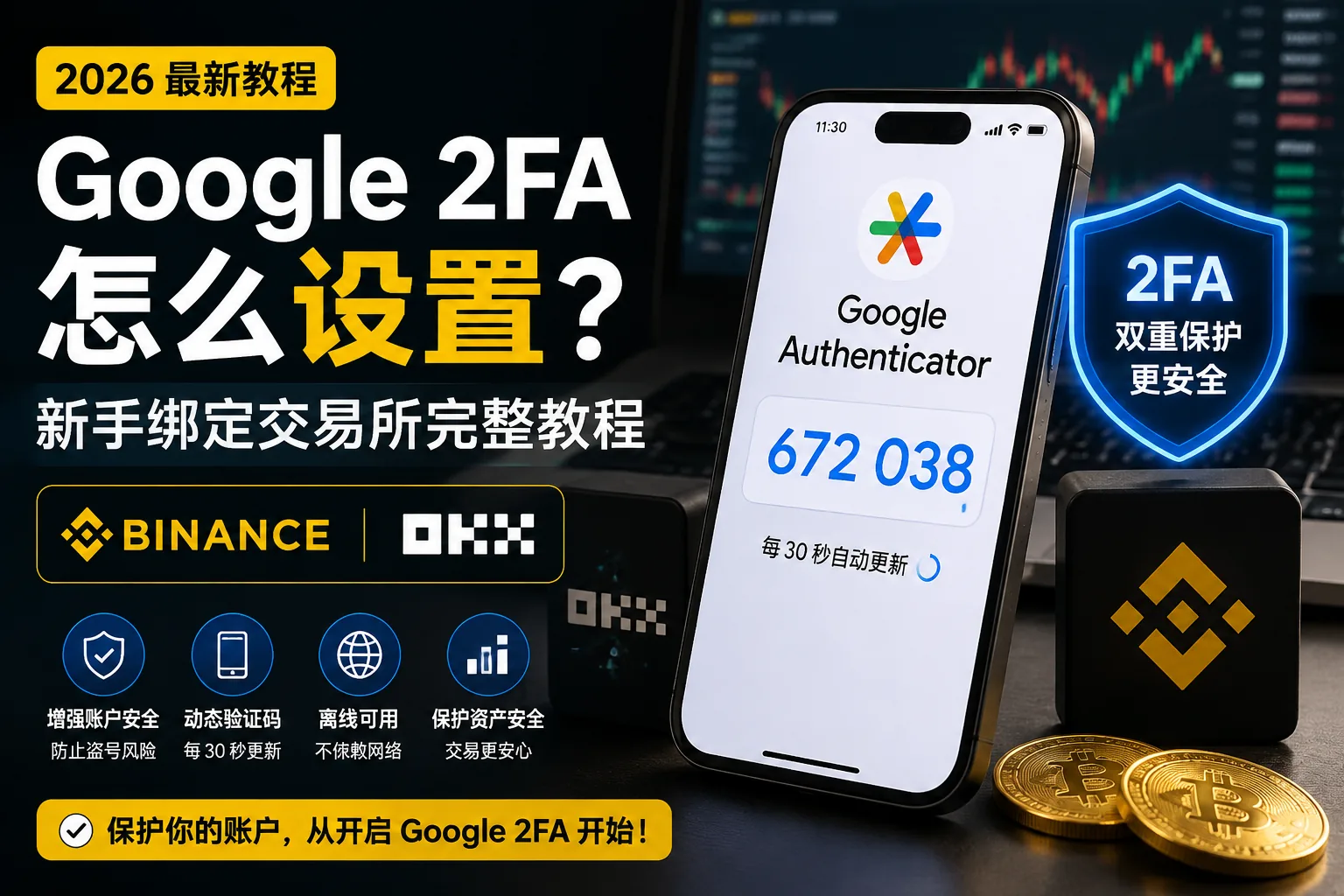
Table of contents

Binance new user rewards
20% trading fee rebate
Official Binance registration. Complete identity verification (KYC) to trade and withdraw.
Just registered on Binance or OKX? The system will keep prompting you to "enable 2FA."
Many beginners skip it at this point. It feels like a hassle. They think, "I don't have much in my account — who's going to steal from me?"
But there's a fundamental difference between crypto-account security and a regular app: your exchange account doesn't hold points or membership tiers — it holds digital assets that can be withdrawn at any time and are almost impossible to recover once gone.
2FA is a beginner's first line of defense for protecting an account — and the most effective one.
Table of Contents
- What is Google 2FA?
- Why Google 2FA instead of SMS?
- Step 1: Download Google Authenticator
- Step 2: Enable Google 2FA on Binance
- Step 3: Enable Google 2FA on OKX
- What if you change phones?
- FAQ
If all goes smoothly, it takes under 5 minutes. The two easiest places to mess up: not writing the 16-character backup key on paper right away, and not migrating before switching phones — sell the old phone first and you may never get back into your 2FA.
What is Google 2FA?
Google 2FA (Google Authenticator) is a free authenticator app.
Its job is simple: even if someone knows your login password, they still can't get into your account. Because every time you log in or withdraw, the system also asks for a 6-digit code that changes every 30 seconds.[1]
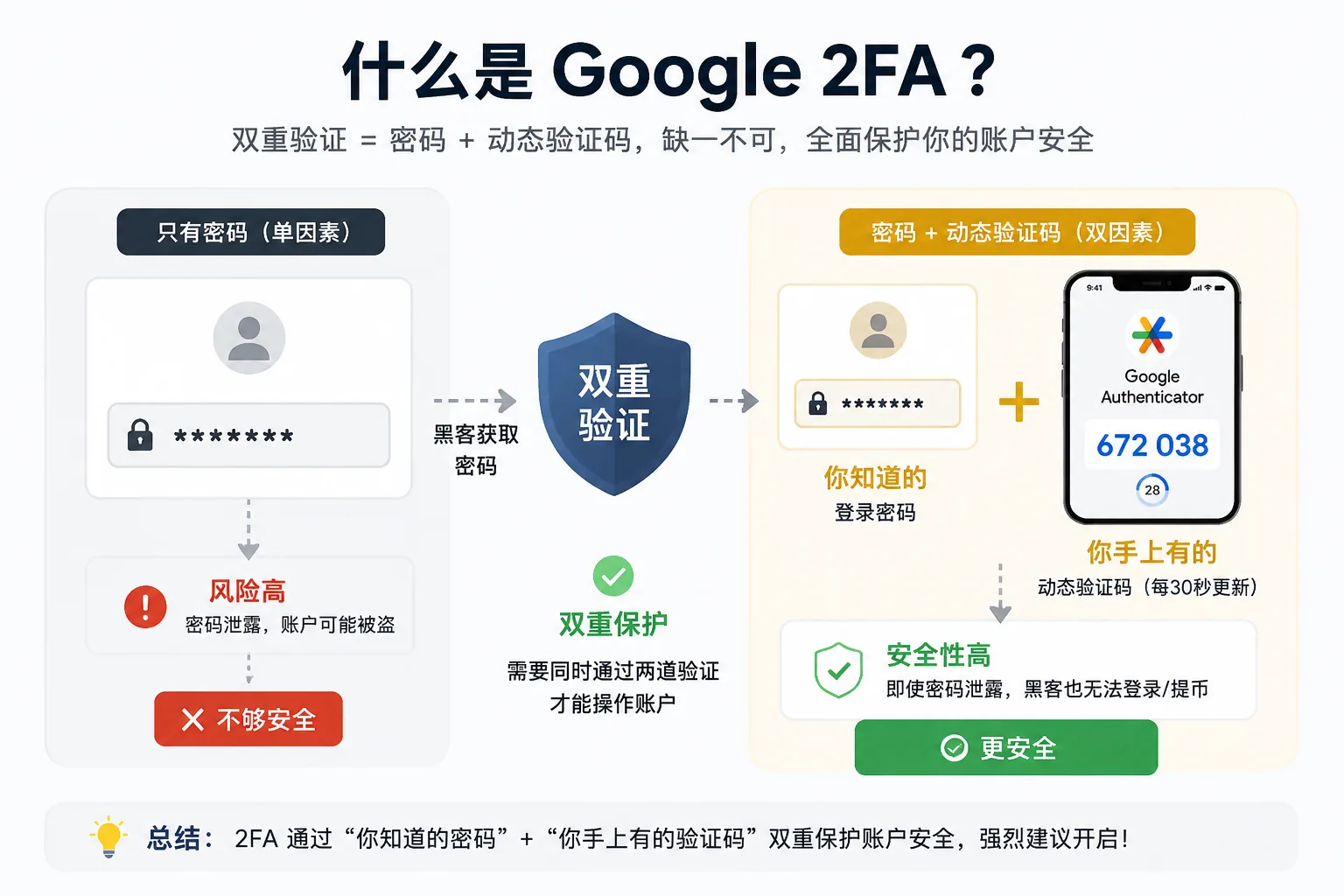
This code only exists on your phone. Even if a hacker gets your password, email, and SMS, they still can't get this code.
That's what "two-factor authentication" means:
- First factor: something you know (password)
- Second factor: something you have (phone code)
Both must pass before you can operate the account.
Why Use Google 2FA Instead of SMS?
Many beginners ask: doesn't the exchange already have SMS verification? Why install an app?
| Method | Risk |
|---|---|
| SMS code | SIM card cloned (SIM Swap attack)[2], carrier vulnerabilities, international SMS delayed/undelivered |
| Email code | Once the email is hacked, the code is exposed at the same time |
| Google 2FA | Runs offline, no network or carrier dependency, new code every 30 seconds, highest security |
Simple conclusion: if you can use Google 2FA, don't use SMS verification.
Both Binance and OKX support Google Authenticator and make it mandatory for withdrawals and security-setting changes. For more security settings, see Binance/OKX Account Security Checklist: 2FA, Anti-Phishing Code, and Withdrawal Whitelist (2026).
Step 1: Download Google Authenticator
iOS users
Open the App Store and search for "Google Authenticator" — the developer is Google LLC.
Android users
- With Google Play: search for "Google Authenticator" directly
- Without Google Play (e.g. some mainland-China Android devices): Binance Android download and install guide → the Binance app has a built-in 2FA feature called Binance Authenticator that can replace Google's
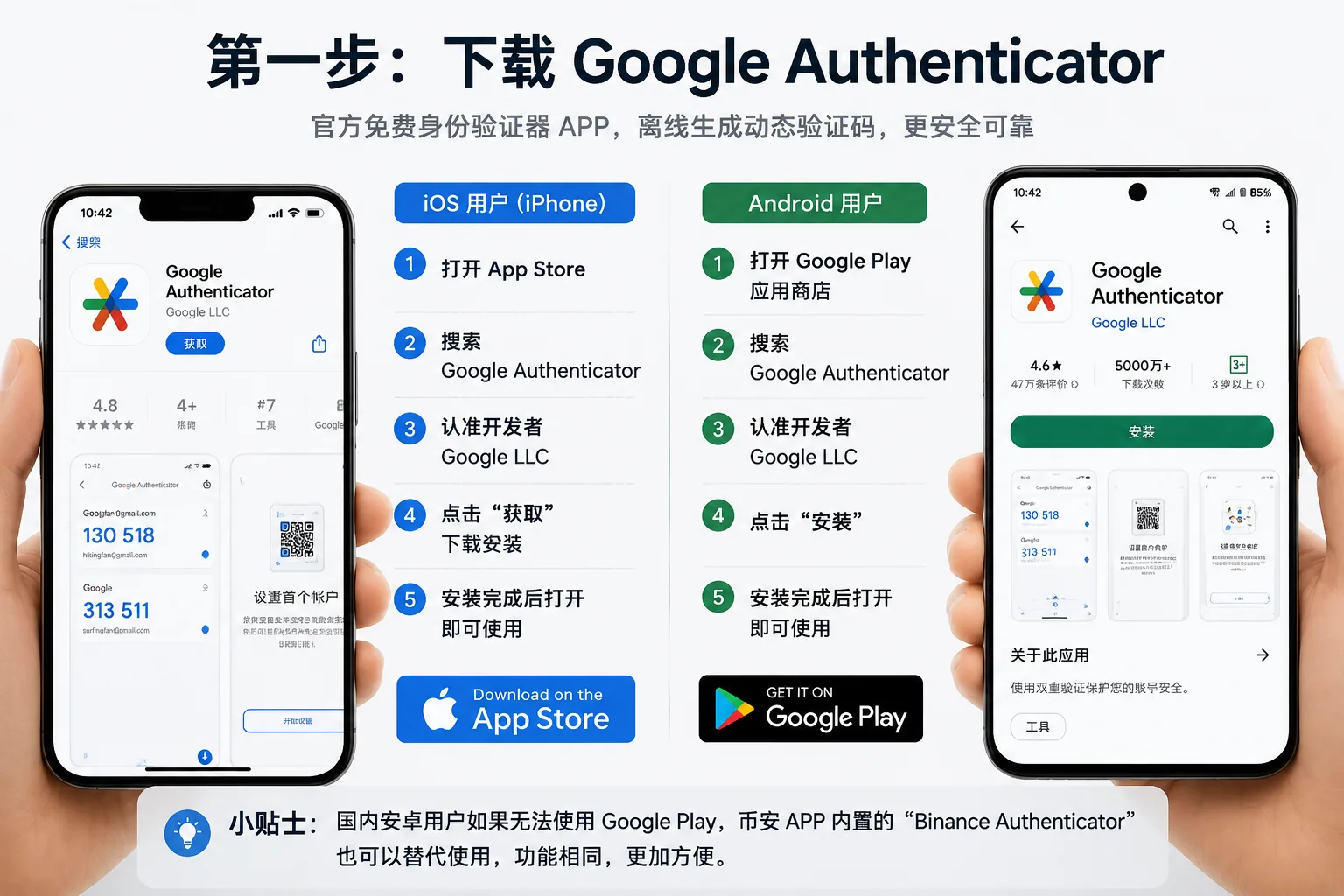
Recommended: if you can't easily get Google Authenticator, use the Binance app's built-in Binance Authenticator instead.
Whichever you use, the process is the same.
Step 2: Enable Google 2FA on Binance
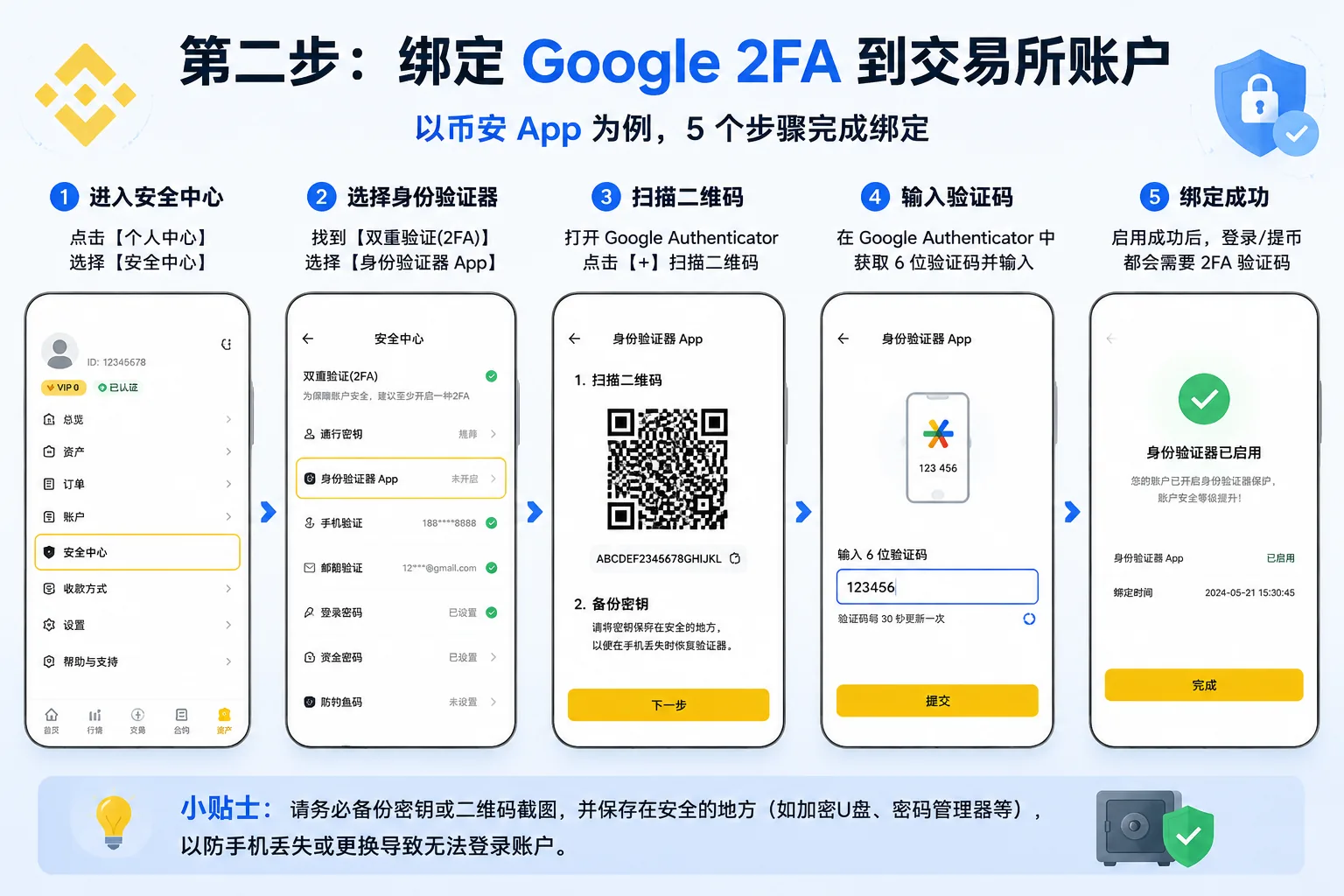
1. Go to Security Center
Open the Binance app (if you haven't finished KYC verification yet, read that first) → profile icon in the top-left of the home screen → Security → Google Authenticator
2. Copy the backup key (the most important step!)
The system will show a 16-character key (letters + numbers).
Write this key on paper immediately — no photos, no screenshots.
This key's purpose: if your phone breaks, is lost, or is replaced, you can use this key to restore 2FA on a new phone.
No key = if you lose your phone, you may never get back in.
3. Open Google Authenticator
Tap the + in the bottom-right → Enter a setup key → paste the 16-character key you just wrote down
4. Enter the code to finish binding
Google Authenticator will start generating 6-digit codes.
Go back to the Binance app, enter the 6-digit code currently shown → tap enable.
Binding complete.
5. Confirm it's enabled
Go back to the Binance Security Center — if Google Authenticator shows "Enabled", it worked.
Step 3: Enable Google 2FA on OKX
The steps are almost the same:
- OKX app → profile icon in the top-left → Security Center → Google Authenticator
- The system shows the key — write it down immediately
- In Google Authenticator, tap + and enter the key
- Go back to OKX, enter the 6-digit code → binding complete
What If You Change Phones?
This is where beginners trip up most often.
Many people sell or factory-reset their old phone before realizing the 2FA is gone from the new phone — and they can't get into the exchange.
The correct phone-switching flow:
If you still have the old phone
- Open Google Authenticator on the old phone
- Top-right menu → Transfer accounts → Export accounts
- Select the account(s) to transfer → generate a QR code
- On the new phone's Google Authenticator → + → Scan a QR code
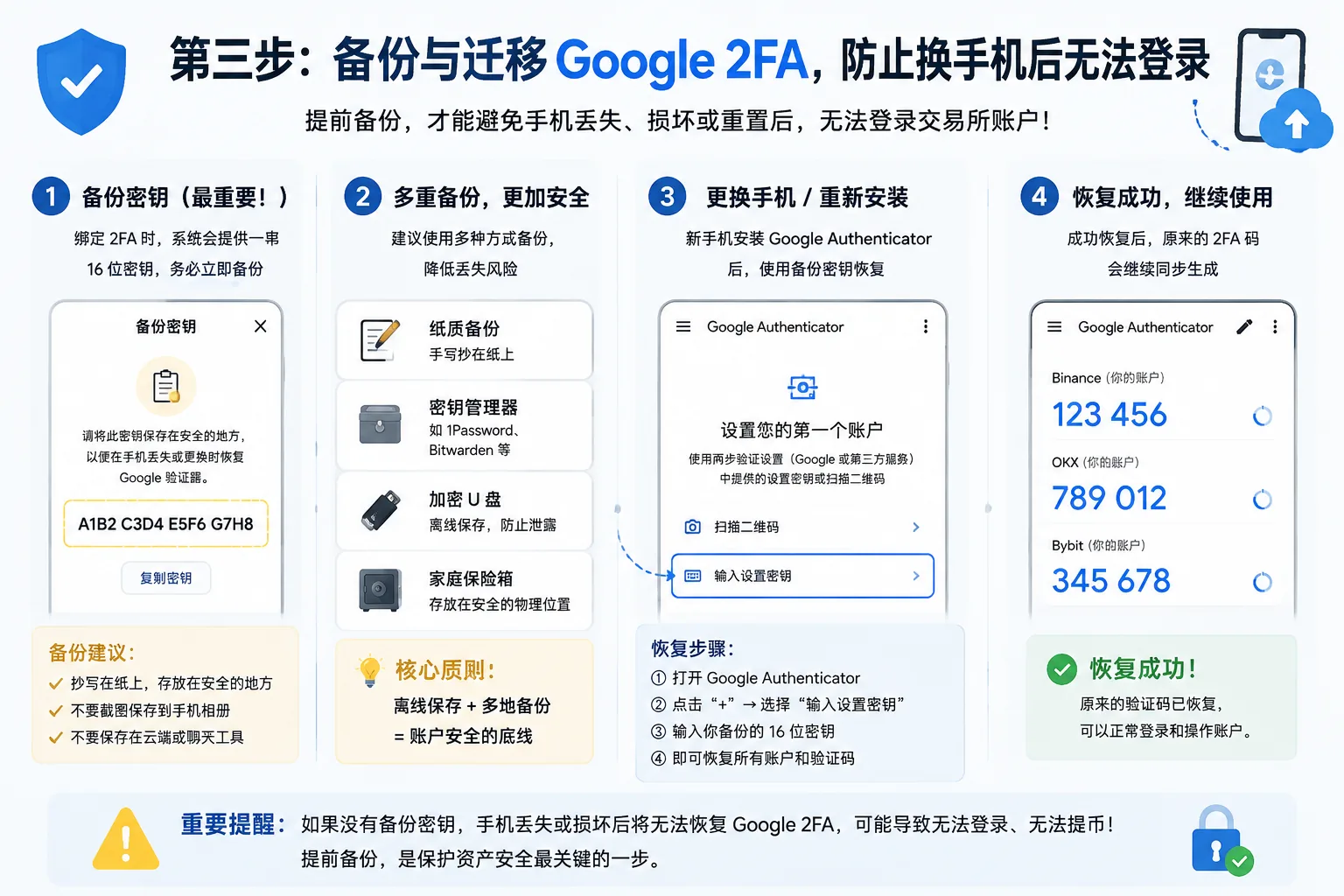
If the old phone is already gone
Use the 16-character key you wrote on paper earlier.
On the new phone, open Google Authenticator → + → Enter a setup key → type in the key → restored.
This is why Step 2 stresses "write the key down immediately" — it's your last lifeline.
FAQ
Does Google Authenticator cost money?
Completely free. No account registration needed, no internet needed, works offline.
Can I use a WeChat mini-program instead?
Not recommended. The mini-program authenticator and Google 2FA use the same protocol (TOTP), but the security of your WeChat account itself becomes the weak point. If your WeChat is hacked, the codes may leak at the same time. A standalone Google Authenticator is safer.
Which is better, Binance Authenticator or Google Authenticator?
Same functionality. The difference:
- Google Authenticator: works globally, supported by all platforms
- Binance Authenticator: built into the Binance app, no extra download, more convenient on some Android devices
If you're only binding Binance and OKX, Binance Authenticator is enough.
The 2FA code keeps changing — which one do I enter?
Enter the 6-digit number currently showing on the screen. If the code is about to expire (a few seconds left), wait for the next one.
Can I use it on multiple devices at once?
Google Authenticator now supports cloud sync (requires signing in to a Google account)[3], so you can sync it across multiple devices. But the safer approach is still writing down the key — you can always restore manually.
Besides exchanges, where else should I enable 2FA?
- Your main email (Gmail, Outlook, etc.)
- Telegram (the main platform for crypto communities)
- Any account related to money
Email is the weakest link in the security chain. Because "password recovery" usually relies on email. An insecure email = all linked accounts insecure. This is just like seed phrase protection — the strength of a security chain depends on its weakest link.
Data verification notes
Key facts in this article were verified on 2026-10-16 against official Google and FCC sources, item by item:
- Authenticator mechanism: Google Authenticator generates a new 6-digit code every 30 seconds, serving as the second verification factor for account login and withdrawals. Source: Google's official "Google Authenticator" documentation.
- SMS verification risk: SMS codes carry risks such as SIM cloning (SIM Swap), so an authenticator is preferred. Source: FCC "SIM Swapping."
- Cloud sync: Google Authenticator supports cloud sync after signing in to a Google account, but writing down the key remains the most reliable recovery method. Source: Google's official "Google Authenticator" documentation.
What Should Beginners Remember in the End?
2FA isn't a "set it and forget it" setting.
It's a set of habits:
- Keep the key written on paper
- Migrate first before changing phones
- Enable 2FA on your email too
Spending 10 minutes setting all this up can block 99% of account-security risks.
Next security setting to do: Binance/OKX Account Security Checklist: 2FA, Anti-Phishing Code, and Withdrawal Whitelist (2026)
- Google: Official Google Authenticator documentation6-digit codes change every 30 seconds, cloud sync
- FCC: SIM SwappingSMS verification codes carry SIM-cloning risk
- 2026-10-16UpdateAdded evidence-chain superscripts and Data verification notes, updated key fact verification date
See ourEditorial Policy and the correction process in ourCorrections Policy.
The CoinTrailHub editorial team focuses on crypto education for beginners, exchange security and P2P trading risk. This article is compiled from official sources and public data, reviewed by humans, and strives for accuracy but is not investment advice.
Last updated:2026-08-01 · Content reviewed by humans · Learn more
© 2026 CoinTrailHub · Original content. Reproduction or rewriting without permission is prohibited.