
Binance/OKX Account Security Checklist: How to Enable 2FA, Anti-Phishing Code and Withdrawal Whitelist (2026)
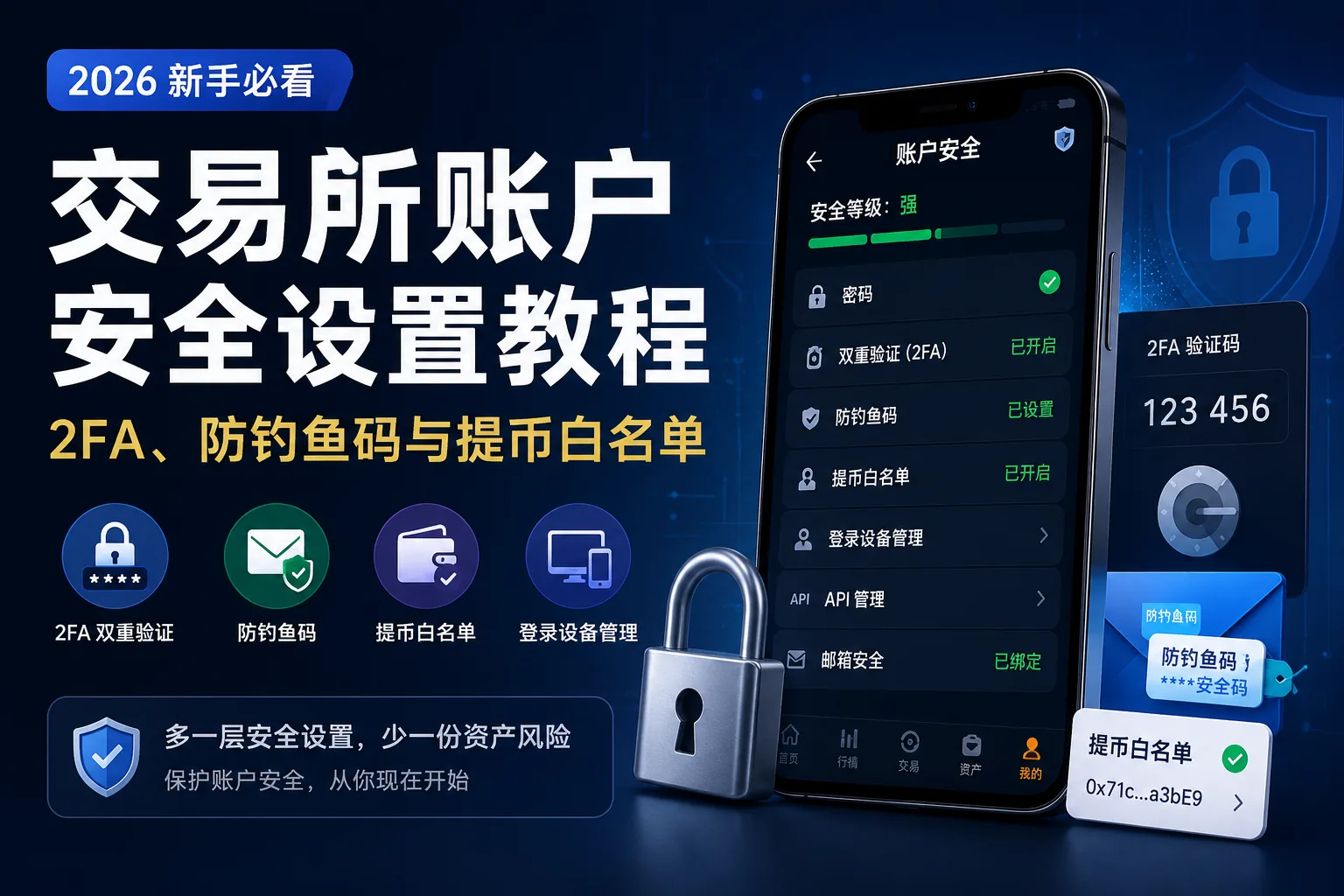
Table of contents

Binance new user rewards
20% trading fee rebate
Official Binance registration. Complete identity verification (KYC) to trade and withdraw.
After registering on an exchange, most beginners' first instinct is to look at the market and figure out their next move.
I suggest you pause first.
The account was just created — don't rush to put assets into it yet. Finish the security settings first.
This article is for beginners on centralized exchanges like Binance, OKX, and Bitget. Binance is used as the main example; the entry points and logic on OKX and Bitget are basically the same, only button names may differ slightly. The core items are: password, 2FA, anti-phishing code, withdrawal whitelist, login devices, API and email security.
If you haven't finished registering yet, read these first:
- How to Register on Binance (2026)
- Binance KYC: How to Verify Your Identity — Review Time, Failure Reasons & Fixes (2026)
The most common mistakes I've seen are actually very basic:
Using the same password across platforms, enabling 2FA but not backing up the key, clicking links the moment an email arrives, and not restricting withdrawal addresses. It feels fine in normal times, but when something actually goes wrong, it's a real hassle to deal with.
This article won't lecture you — it just goes through things in the order you should do them after registering.
First, look at this security checklist
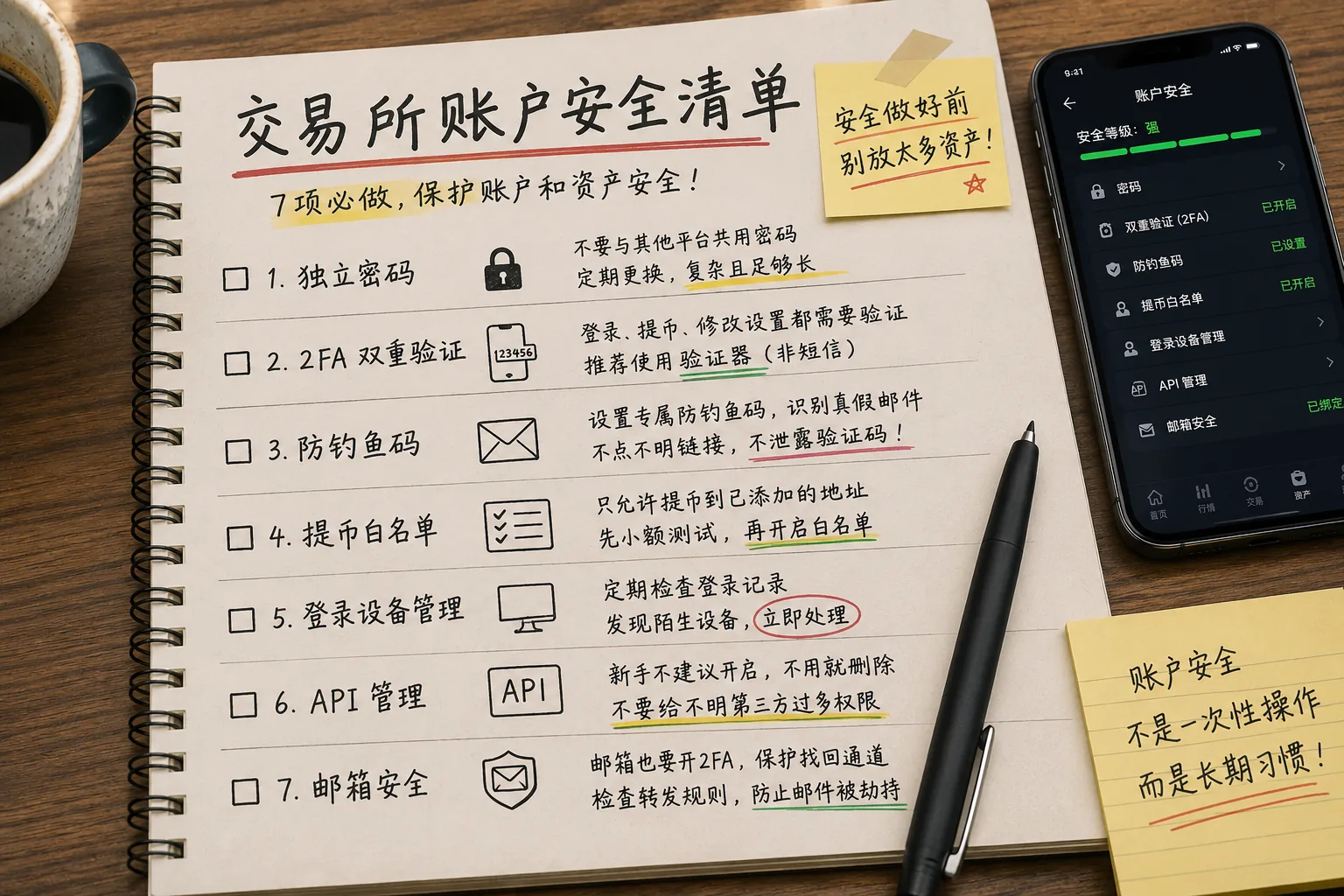
| Item | Recommendation | Most common mistake |
|---|---|---|
| Unique password | Must-do | Reusing the same password across platforms |
| 2FA | Strongly recommended | Enabled but didn't back up the key |
| Anti-phishing code | Recommended | Clicking links the moment an email arrives |
| Withdrawal whitelist | Recommended once you hold assets | Still not set up even with assets in the account |
| Login devices | Check regularly | Never looking at the login history |
| API | Beginners shouldn't touch it | Authorizing it without understanding it |
| Email security | Must-do | Email doesn't have 2FA enabled |
My advice is simple:
Don't keep too many assets in the account until the first four items are done.
This isn't fearmongering — there's no need to add risk to yourself.
It should take about 10 minutes to set up, and the two easiest places to trip up are: reusing the same password across platforms, and enabling 2FA without backing up the authenticator key.
1. Change your password to a unique one first
Don't be lazy.
Your exchange password should not be the same as your email, WeChat, Telegram, or other exchange passwords.
My requirements are just three things:
Longer. More random. Never reused.
Don't use these kinds of passwords:
| Type | Problem |
|---|---|
| Last digits of your phone number | Too easy to guess |
| Birthday + pinyin name | Too obvious |
| abc123456 | Too common |
| binance888 | Platform name + numbers, high risk |
| Same password everywhere | One leak, danger everywhere |
There's also a practice I strongly advise against:
Writing all your passwords, email password, and authenticator key in plain text in your phone's notes.
It looks convenient, but the risk is high. If you lose your phone or your cloud account has issues, you'll be in a very passive position.
If you can't remember passwords, use a password manager.
Even without a tool, do at least one thing:
The exchange password and email password must be different.
Binance Academy has a basic account security article you can use as a reference: Secure Your Binance Account in 7 Simple Steps.
2. Enable 2FA, and prefer an authenticator
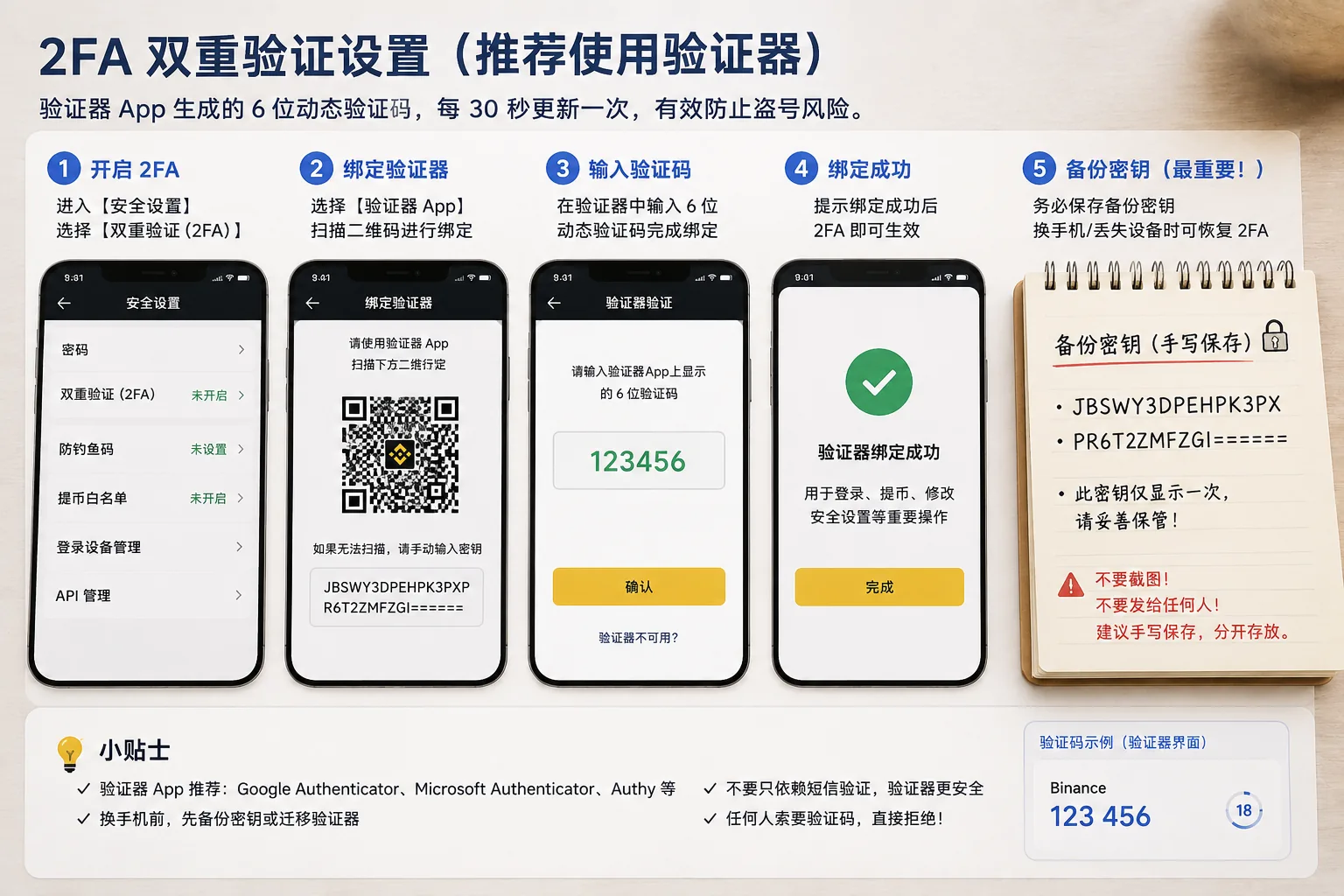
2FA is two-factor authentication.
The password is one door; 2FA is a second door.
Even if someone knows your password, they still need a verification code to log in, withdraw, or change security settings.
The usual path is:
Account center
Security settings
Two-factor authentication / 2FA
Bind authenticator
Scan the QR code
Enter the verification code
Save the backup key
On Binance, the entry is usually [Account] → [Security] → [Two-factor Authentication (2FA)] → [Google Authenticator]; on the app it's [Account / Profile] → [Security].
The common verification methods for beginners are:
- Email code: a basic setup, but don't rely on it alone
- SMS code: convenient, but not recommended as the only method
- Google Authenticator / authenticator: the recommended first choice for beginners
- Passkey / security key: for those with higher security requirements
I'd suggest using Google Authenticator or another authenticator, not relying on SMS alone.
SMS is convenient, but there are risks like losing your phone number, SMS delays, and SIM-swap attacks.[1] On multi-factor authentication, you can also read CISA's guidance: More Than a Password.
The most important step here is:
Save the backup key.
Many people just scan the QR code when enabling 2FA and skip the backup key entirely.
It's only when they lose, break, or replace their phone that they realize the code can't be recovered.
My approach is old-fashioned but practical:
Write the backup key down by hand in two copies, stored separately.
No screenshots, no sending over WeChat, no plain-text files in cloud storage.
Enabling 2FA isn't the end of it.
The backup key is your way back.
3. Set up an anti-phishing code
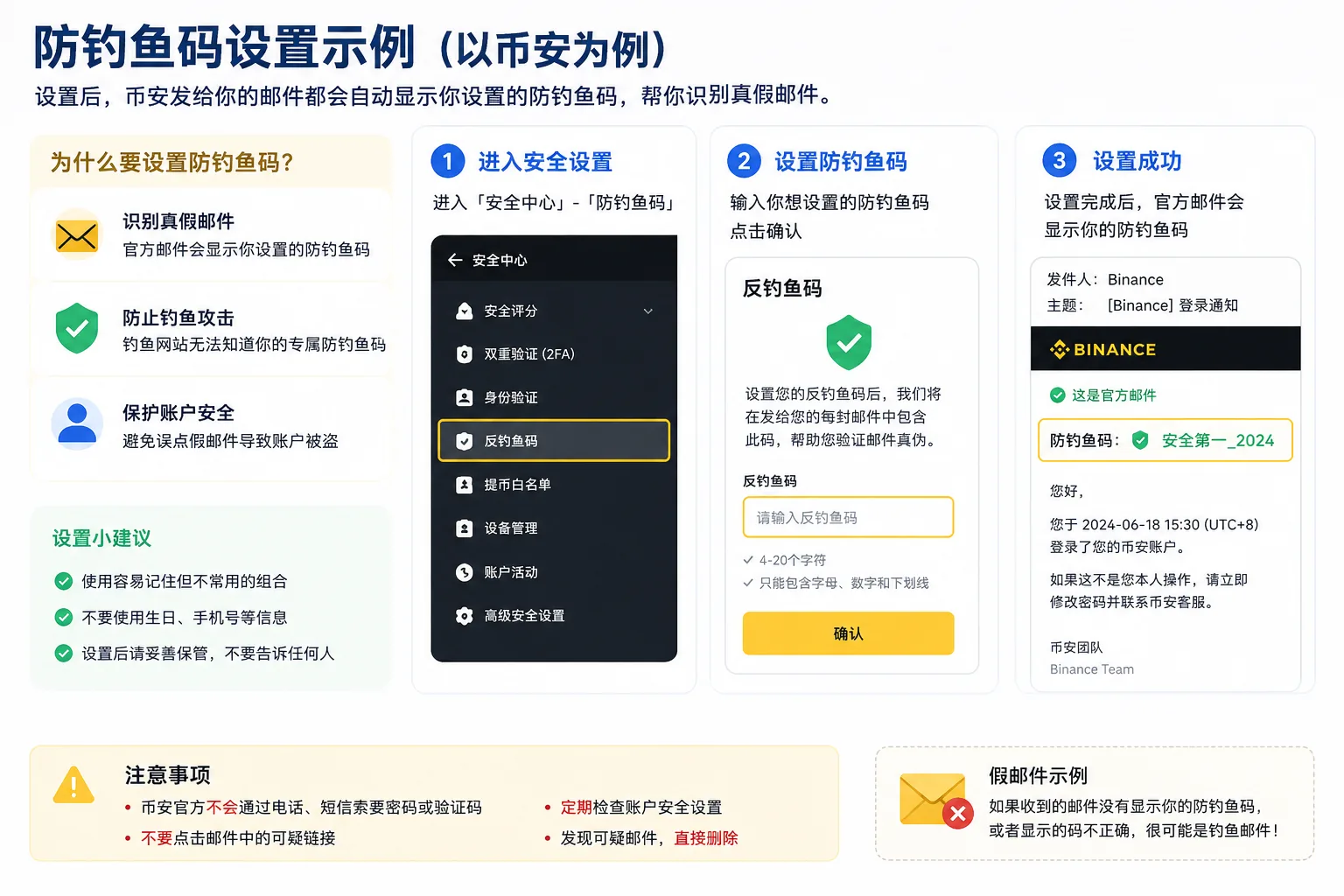
Many beginners overlook the anti-phishing code, but I find it very useful.
What it does is simple:
You set a phrase yourself.
Official emails will show this phrase from now on.
If an email doesn't show it, or shows it wrong, treat it as suspicious.
For example:
Safe2026
OnlyMy2026
NoFakeLink
The usual path is:
Account center
Security settings
Anti-phishing code
Create anti-phishing code
On Binance this feature is called [Anti-Phishing Code], and it's generally recommended to set a 4–10 character combination with uppercase and lowercase letters and numbers.[2]
Don't use anything too simple, like:
- 123456
- password
- binance
- okx
- your birthday
When you see emails like these, don't rush to click:
| Email content | What to do |
|---|---|
| Account abnormal, verify immediately | Open the official app and check yourself |
| Withdrawal function frozen | Check in-app notifications first |
| Re-KYC required | Go into the account center to confirm yourself |
| Support asking for your verification code | Refuse outright |
| Asking you to enter your seed phrase | Extremely high risk |
Remember one line:
The more an email urges you, scares you, or pushes you to click a link right now, the less you should rush.
The official anti-phishing code explainer is here: What Is an Anti-Phishing Code and How to Set It up.
4. Once you hold assets, set up the withdrawal whitelist
The withdrawal whitelist is great for beginners.
What it does:
The account can only withdraw to addresses you've added in advance.[3]
Even if the account has an issue, this adds one more barrier against assets being withdrawn to an unfamiliar address.
Common path:
Assets
Withdraw
Address management
Add address
Choose coin and network
Enter the wallet address
Enable whitelist
On Binance, the entry is usually [User Center] → [Withdrawal Address Management] (web), or [My] → [Security] → [Withdrawal Address Management] on the app.
For Binance withdrawal settings, see: How to Manage Withdrawal Settings for My Binance Account.
There are two places where mistakes are easiest to make.
First, don't copy the address wrong.
Don't just check the first and last few characters — verify the middle too.
If you don't understand wallet addresses, read this first: What Is a Crypto Wallet? Wallet Addresses, Seed Phrases and Asset Security.
Second, don't choose the wrong network.
Assets like USDT and USDC can run on many networks:
- ERC20
- TRC20
- BEP20
- Solana
- Polygon
- Arbitrum
- Base
Don't pick one just because the fee is cheap.
If you pick the wrong network, some can be recovered, some are a hassle, and some may be gone for good.
If you're unsure about network differences, read: Can You Recover a Wrong-Chain Transfer? Withdrawal Networks and Wallet Addresses.
My habit is:
- Add the common address first
- Confirm the coin and network
- Test with a small amount
- Save the address after it arrives
- Then enable the whitelist
Don't show off on your first withdrawal.
The small-amount test is a step you can't skip.
On whether to keep assets on the exchange or in a wallet, read: Where to Keep the USDT You Bought on Binance/OKX? On the Exchange or Withdraw to a Wallet.
5. Check your login device history regularly
Many people never look at their login history.
But this part matters.
The usual path is:
Account center
Security settings
Device management / Login history
On Binance web, it's usually in [Device Management] at the bottom of [User Center].
Focus on these:
- Any unfamiliar phone or computer
- Whether the login region is one you normally use
- Any abnormal logins in the middle of the night
- Whether the IP clearly doesn't match
- Whether security settings were changed
If something looks wrong, handle it directly:
- Log out of all devices
- Change your exchange password
- Change your email password
- Check 2FA
- Check withdrawal addresses and whitelist
- Check API
- Contact support through the official app or website
Don't trust "support staff" who DM you first in Telegram, WeChat groups, or comment sections.
Real support will never ask for your password, verification code, or seed phrase.
6. Beginners shouldn't touch API
Most beginners don't need API.
It's mainly for quant tools, third-party trading tools, and automation programs.
If you don't understand it, don't enable it.
Especially don't give unfamiliar tools these permissions:
- Read account
- Trading permission
- Withdrawal permission
The most dangerous one is withdrawal permission.
The check path is usually:
Account center
API management
If there's an API you don't recognize, delete it directly.
If you enabled one before but don't use it now, delete it too.
7. Harden your email too
Don't only protect your exchange account — email matters just as much.
Login alerts, password resets, withdrawal confirmations, and security notices all rely heavily on email.
Do these for your email:
- Email password shouldn't match the exchange password
- Enable 2FA on your email too
- Keep a backup email that's usable long-term
- Clean up login devices regularly
- Check for unfamiliar auto-forwarding rules
Pay special attention to auto-forwarding.
Some emails get tampered with — the attacker won't change the password right away, but secretly forwards your exchange emails.
These details are easy for beginners to miss.
My actual setup order
For a newly registered exchange account, I generally go in this order:
| Order | Action |
|---|---|
| 1 | Change to a unique password |
| 2 | Enable 2FA on email |
| 3 | Enable 2FA on the exchange |
| 4 | Save the authenticator backup key |
| 5 | Set the anti-phishing code |
| 6 | Check login devices |
| 7 | Delete unneeded APIs |
| 8 | Add a common withdrawal address |
| 9 | Test a small withdrawal |
| 10 | Enable the withdrawal whitelist |
You don't need to fiddle with these every day, but set them up right from the start.
The easiest pitfalls to hit
| Scenario | The right move |
|---|---|
| Received an "account abnormal" email and clicked the link | Open the official app and check yourself |
| Someone in a group claims to be support | Don't believe it, go through the official channel |
| Choosing a withdrawal network only by fee | Confirm the address and network first |
| Didn't migrate 2FA before switching phones | Back up before switching phones |
| Put too many assets in the first withdrawal | Test with a small amount first |
| Told someone your verification code | Don't give it to anyone, ever |
| Downloaded an installer someone sent | Only use the official site or app store |
Most security problems aren't about overly complex technology.
More often, it's people rushing and taking shortcuts, skipping the most basic checks.
Related reading
- Binance Account Hacked? 4-Step Recovery + 5 Causes
- How to Prevent Wallet Theft? Seed Phrases, Wrong-Chain Transfers and Approval Risks
- What Is a Cold Wallet? How to Store Your Seed Phrase Most Safely
FAQ: Common exchange account security questions
1. Do I really need 2FA on an exchange?
Strongly recommended, especially once the account holds assets.
Relying on a password alone is too risky. With 2FA on, logging in, withdrawing, and changing security settings all get an extra confirmation.
At minimum, beginners should enable an authenticator — don't rely on SMS alone.
2. What do I do with Google Authenticator when switching phones?
Migrate it in advance while the old phone still works.
The order is:
- Open the authenticator on the old phone
- Export the accounts
- Import on the new phone
- Test the verification code
- Once it's confirmed working, deal with the old phone
Also keep the backup key safe.
Otherwise you'll have to go through the platform's appeal process, which is a hassle.
3. What's the anti-phishing code for?
It mainly helps you tell real official emails from fake ones.
Official emails will show the anti-phishing code you set.
If it's missing or wrong, don't click any links.
Be especially careful with emails about "account abnormal, withdrawal frozen, re-KYC, security upgrade".
4. Should I enable the withdrawal whitelist?
If the account holds assets you plan to keep long-term, yes.
But before enabling it, confirm the address and network are correct.
When adding an address for the first time, test with a small amount first.
5. Which is better, SMS verification or Google Authenticator?
Generally, an authenticator is better as the primary 2FA.
SMS is convenient, but you may run into delays, losing your phone number, or SIM-swap risks.
Whichever you use, never give the verification code to anyone.
6. What should I do if I get an "account abnormal" email from the exchange?
Don't click the link first.
Open the official app yourself, go to the account center, and check whether there's really a security alert.
Don't log into your account through links in emails, SMS, Telegram, or WeChat groups.
7. What should I do if my exchange account is hacked?
Do these first, immediately:
- Change the exchange password
- Change the email password
- Log out of all devices
- Check 2FA
- Check withdrawal addresses and whitelist
- Check API
- Contact support through the official app or website
Don't trust "support staff" who DM you.
8. After setting up account security, do I still need to check regularly?
Yes.
I'd suggest checking every month or two:
- Login devices
- Login IP
- Withdrawal addresses
- API permissions
- Email security
- Anti-phishing code
- Whether 2FA is working
After switching phones, emails, or computers, check again.
9. If the exchange account is secure, do I still need a wallet?
It depends on how you use it.
Exchanges are good for registering, converting, P2P, and basic operations.
Wallets are better for managing on-chain assets yourself, but they come with seed-phrase, private-key, approval, and fake-website risks.
Don't simplify it to "wallets are always safer than exchanges".
More accurately:
Exchanges and wallets have different risks. First understand what you're actually using, then decide where to put your assets.
Before using an on-chain wallet, read: What Is a Seed Phrase? Why No One Can Help You Recover Assets If You Lose It.
Just after registering, don't rush to deposit assets.
First get the password, 2FA, anti-phishing code, and whitelist basics done.
These things have no presence in daily life, but when something actually goes wrong, they save you a lot of trouble.
Until you understand account security, don't put too many assets in.
The scariest thing in crypto isn't being slow — it's cutting corners.
Data verification notes
The key facts in this article were checked on 2026-10-16 against Binance's official docs and CISA's security guidance, point by point:
- 2FA verification method: SMS verification codes carry risks of losing your phone number, SMS delays, and SIM-swap attacks; prefer using an authenticator. Source: CISA "More Than a Password".
- Anti-phishing code: Binance's Anti-Phishing Code is generally recommended as a 4–10 character combination with uppercase and lowercase letters and numbers. Source: Binance official "What Is an Anti-Phishing Code".
- Withdrawal whitelist: once enabled, the account can only withdraw to addresses added in advance. Source: Binance official "How to Manage Withdrawal Settings".
Author's note
This article is based on the CoinTrailHub editorial team's hands-on experience, focused on account security and beginner pitfalls. It is not investment advice and does not represent any exchange's official opinion.
Exchange backend features, button names, and security rules may change with version updates — refer to the platform's official pages before acting.
- CISA — More Than a PasswordMFA and SMS verification code risks
- Binance official — What Is an Anti-Phishing CodeAnti-phishing code setup rules
- Binance official — How to Manage Withdrawal SettingsWithdrawal whitelist and withdrawal settings
- 2026-10-16UpdateAdded evidence-chain superscripts and Data Verification Notes; updated the key-fact verification date.
See ourEditorial Policy and the correction process in ourCorrections Policy.
The CoinTrailHub editorial team focuses on crypto education for beginners, exchange security and P2P trading risk. This article is compiled from official sources and public data, reviewed by humans, and strives for accuracy but is not investment advice.
Last updated:2026-07-10 · Content reviewed by humans · Learn more
© 2026 CoinTrailHub · Original content. Reproduction or rewriting without permission is prohibited.