
How to Buy USDT on Binance (2026): P2P Buying Steps, Choosing a Seller & Payment
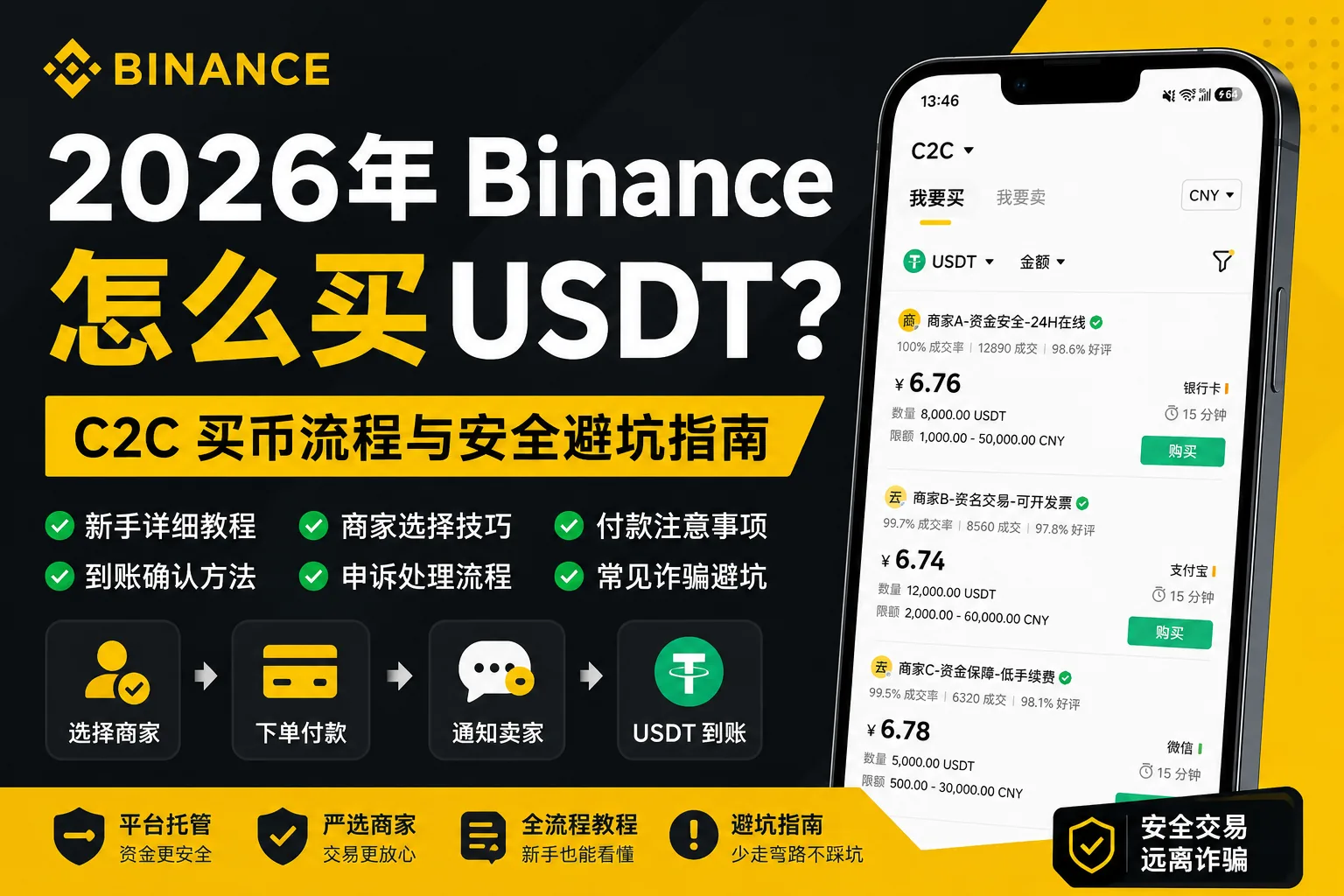
Table of contents

Binance new user rewards
20% trading fee rebate
Official Binance registration. Complete identity verification (KYC) to trade and withdraw.
How do you buy USDT on Binance? After completing the required identity verification and confirming the service is available in your region, open the Binance app and go to "Add Funds → P2P". Choose the Express zone or the P2P marketplace, then select USDT, your purchase amount, and a payment method. After confirming the order, pay using the details provided in the order, tap "I have paid, notify the seller", and wait for the seller to confirm receipt and release the USDT.
For your first USDT purchase, follow these seven steps:
- Enter P2P: Open the Binance app and tap "Add Funds → P2P".
- Choose a trading zone: Use the Express zone, or switch to the P2P marketplace to browse sellers.
- Select USDT: Set the fiat currency your account supports and the amount you want to buy.
- Review the seller: Check the quote, order completion rate, trade history, and payment method.
- Create the order: Confirm the estimated USDT you will receive, the payment amount, and the seller's terms.
- Complete payment: Transfer according to the order details, then tap "I have paid, notify the seller".
- Check arrival: Wait for the seller to confirm receipt, then check the order status and your USDT balance.
The most important point: buying USDT via P2P does not mean depositing fiat into your Binance account — it means paying the seller according to the platform order. Binance holds the seller's crypto assets in escrow during the trade, and releases the assets according to the order process once the seller confirms receipt.
If you have paid but have not received USDT, do not cancel the order directly and do not pay again. First confirm your real payment status, then contact the seller through the original order or request platform assistance.
This article focuses on the practical steps for buying USDT on Binance for the first time: where the entry is, how to choose between the Express zone and the P2P marketplace, how to filter sellers, how to pay, and where to find the USDT you bought.
Timeliness note: This article references Binance's official P2P app tutorial and related help files updated in April 2026. Features may differ by region, account, and app version; always follow your actual page and the laws that apply where you are.
Risk note: P2P trading can involve fraud, payment disputes, bank-account restrictions, and loss of funds. Platform escrow does not remove all risk. Confirm your trading eligibility and that your payment method is compliant before you trade.
If all goes smoothly, you can go from placing the order to receiving USDT in about 10 minutes. The two easiest places to trip up are tapping "I have paid" before you actually paid, and — after paying without receiving USDT — paying again or rushing to cancel the order.
1. What is Binance P2P, and what steps are involved in buying USDT?
Binance P2P (peer-to-peer, sometimes called C2C) is a trading model where users buy and sell crypto assets directly with each other.
The buyer creates a buy order through the platform and pays the seller using the payment method provided in the order. Binance provides crypto-asset escrow and trade-management for the order. Once the seller confirms receipt of the funds, the platform releases the assets according to the order process.
USDT (Tether) is a stablecoin issued by Tether that aims to track the US dollar. It is commonly used for crypto trading and transfers. USDT is not a bank deposit, and its market price is not guaranteed to stay exactly at $1.
What ways are there to buy USDT on Binance?
Where supported by your region and account, Binance may offer P2P buying, card buying, third-party payments, and spot conversion.
| Buying method | What you do |
|---|---|
| P2P buying | Pay fiat to the order's seller and receive USDT |
| Card buying | Buy through a supported card payment service |
| Third-party payment | Buy through a supported payment provider |
| Spot conversion | Use assets you already hold to convert to USDT |
Different methods can have different fees, eligibility requirements, and payment rules.
This article focuses on P2P because it involves several consecutive steps you need to understand: choosing a seller, paying in fiat, confirming the order, and receiving the assets.
2. What is the difference between the Express zone and the P2P marketplace?
Binance P2P has two common ways to trade: the Express zone and the P2P marketplace.
Express zone: The system automatically matches you with a trading ad based on the current market quote, your purchase amount, and your payment method.
P2P marketplace: You browse the seller list yourself and compare different sellers' prices, order history, payment methods, and trading conditions.
How do you choose between the two?
| What you need | Which to use |
|---|---|
| Fewer seller-filtering steps | Express zone |
| Compare different sellers' quotes yourself | P2P marketplace |
| See a seller's trade history and completion rate | P2P marketplace |
| The Express zone has no matching order | Check your filters, then try the P2P marketplace |
The Express zone saves some filtering work, but automatic matching does not mean the order is absolutely safe.
The P2P marketplace lets you see more seller information, but it does not guarantee a lower price.
If you want to understand the flow quickly, start with the Express zone; if you want to compare sellers, trade history, and payment terms yourself, use the P2P marketplace.
Whichever you choose, always confirm the order details before paying.
3. What do you need before buying USDT on Binance for the first time?
Before you start, check your account, identity verification, and payment method.
1. Create a Binance account
Register from the official Binance website or app.
If you do not have an account yet, read the Binance registration guide.
Note that completing KYC with a document does not automatically grant you access to every trading service in every region.
2. Complete KYC identity verification
Binance P2P and other services usually require the relevant identity verification.
Before entering the P2P page, check that your verification status meets the current service requirements.
If you have not verified yet, see Binance KYC: How to Verify Your Identity — Review Time, Failure Reasons & Fixes (2026).
3. Confirm P2P is available in your region
Different regions may have restrictions on trading eligibility, payment methods, fiat currency, and stablecoin use.
If the Binance app does not offer the relevant P2P service, do not bypass platform restrictions by faking your location or using someone else's identity documents.
4. Prepare a payment account in your own name
P2P trades usually require a verified payment account in your own name.
Do not use a family member's, friend's, or any third party's bank account to pay without verifying first.
5. Turn on basic account security
Set up a strong password, two-factor authentication, and an anti-phishing code.
If you receive a "Binance security verification link" from a stranger, do not enter your password or verification code on an unverified site.
Pre-purchase checklist
| Item | What to confirm |
|---|---|
| Binance account | You can log in to the official app normally |
| Identity verification | Meets the KYC requirement for the service |
| Region eligibility | The chosen P2P fiat service is legally available to you |
| Payment account | Matches the verified-name payment requirement |
| Account security | Applicable verification measures are set up |
| Trade amount | Within order limits and your risk tolerance |
Confirming these before you enter the buy page reduces failed orders caused by identity-verification, account-limit, or payment-method mismatches.
4. Buying USDT in the Binance P2P marketplace: the full tutorial
Below we follow the order of operations in the Binance app's P2P marketplace.
The P2P marketplace is for users who want to choose the seller themselves and compare trade history and payment methods.
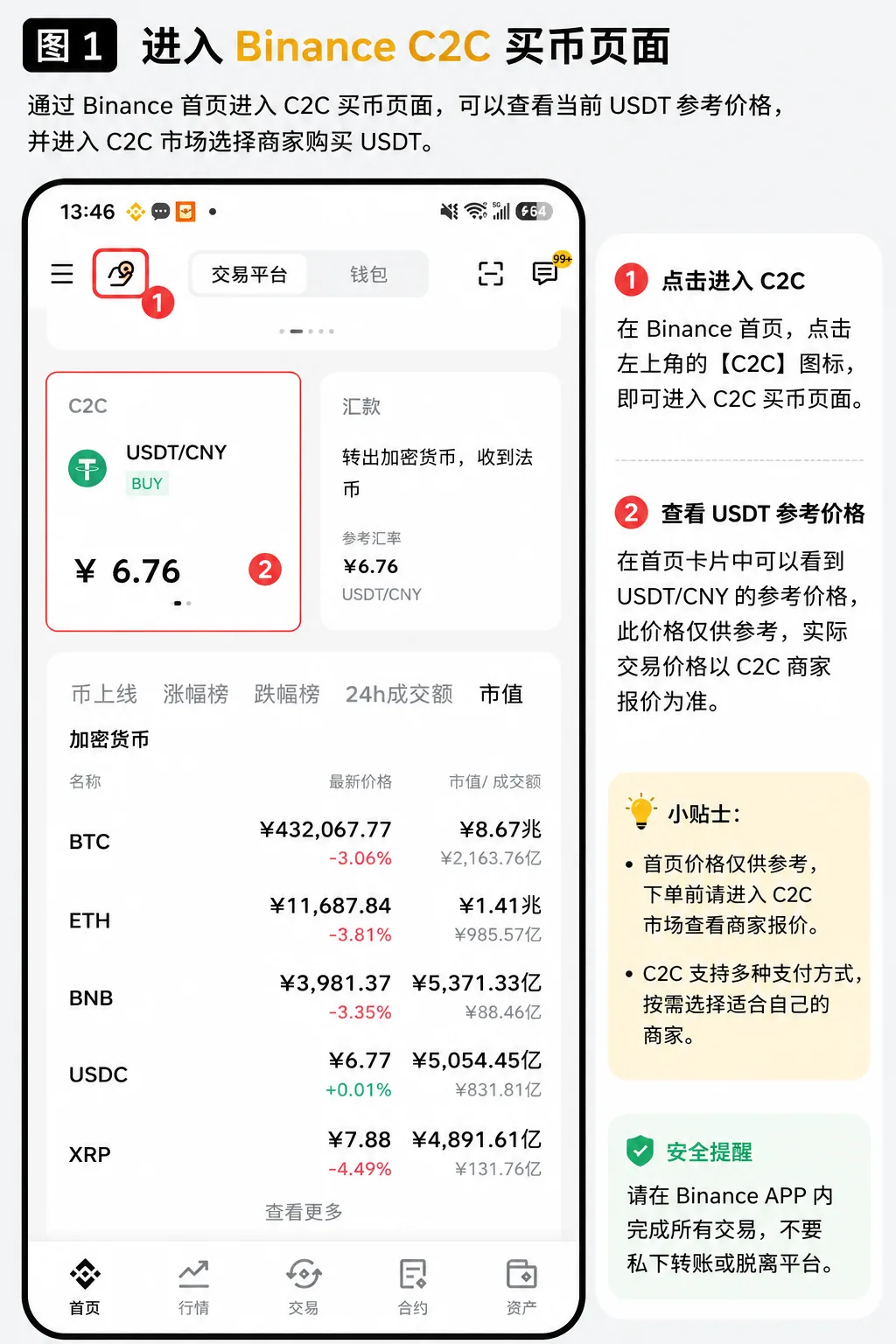
Step 1: Enter the Binance P2P page
Open the Binance app and log in.
In versions that support this interface, tap:
Home → Add Funds → P2P
Once in, select the "P2P" tab at the top.
If your app version shows a different entry, use the in-app P2P search function to find the service.
Note: Use the entry inside the official app. Do not jump to a so-called "Binance payment page" from unknown groups, text messages, or web links.
Step 2: Choose to buy USDT
In the P2P marketplace, select "Buy".
Then select USDT from the crypto asset list.
If the page supports multiple fiat currencies, choose the fiat currency your account is allowed to use.
Be careful not to confuse USDT with USDC, BTC, or ETH — they are different assets.
Step 3: Enter the purchase amount and choose a payment method
Use the page to filter the trade amount and available payment methods.
For example, assuming USDT is quoted at $1.00 each:
| Fiat amount | Estimated USDT |
|---|---|
| $100 | ~100 USDT |
| $500 | ~500 USDT |
| $1,000 | ~1,000 USDT |
This is only a calculation example, not a current market quote.
Different sellers may set different minimum and maximum trade limits.
How much USDT you ultimately receive should follow the amount shown on the order confirmation page.
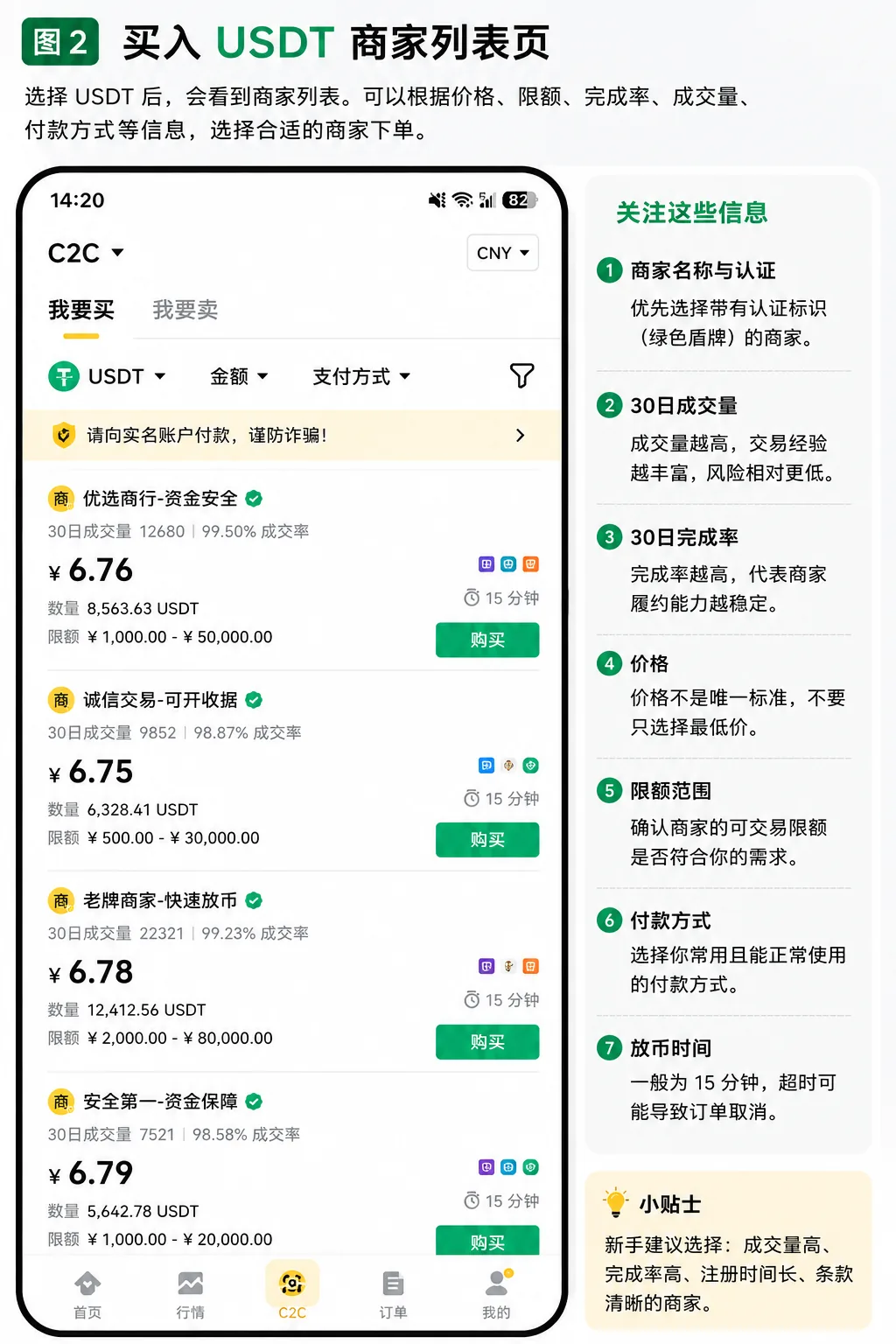
Step 4: Browse the seller list and choose a seller
After filtering by amount and payment method, the page shows the relevant seller ads.
You can usually refer to:
- USDT unit price;
- the seller's completed order count;
- order completion rate;
- available quantity;
- trade amount limits;
- payment method;
- verification or merchant badges;
- the current ad's terms.
For example, two sellers:
Seller A has a slightly lower price but very few historical trades.
Seller B has a slightly higher price, more historical orders, and a payment method that matches your account.
Do not judge which seller is better based on price alone — also check the ad terms and payment details.
For how to filter sellers, see Section 6.
Step 5: Create the buy order
After choosing a seller, tap "Buy".
Enter the USDT quantity or purchase amount on the order page — follow what the app currently shows.
Before submitting, check:
| Order item | What to check |
|---|---|
| Asset to buy | USDT |
| Payment amount | The fiat you actually need to pay |
| Estimated receipt | The USDT quantity shown on the order |
| Trading terms | Seller terms, amount range, and payment window |
After confirming the details, tap "Place order".
Per Binance's official description, once the buyer creates an order in the P2P marketplace, the relevant seller crypto assets are locked according to the order rules.
Do not interpret platform escrow as meaning every bank payment is unconditionally compensated.
Step 6: Check the payment details and pay
After placing the order, open the order details page.
Tap "View payment details" or the corresponding entry on the current page.
Check the payment information the seller provided.
| Payment detail | What to verify |
|---|---|
| Recipient | Matches the order-confirmed information |
| Recipient account | Matches the account specified in the order |
| Payment amount | Exactly matches the order amount |
| Payment account | Meets the verified-name payment requirement |
| Payment time | Within the current order window |
Buying USDT via Binance P2P is not depositing fiat directly into Binance. The buyer usually needs to transfer funds to the seller's specified account through the payment channel the order supports.
Confirm the order details before paying. Do not switch to a different account just because the seller privately sent you another one.
If there are payment-note requirements, follow the real transaction information, platform rules, and the payment provider's lawful requirements. Do not fabricate the payment purpose to evade review.
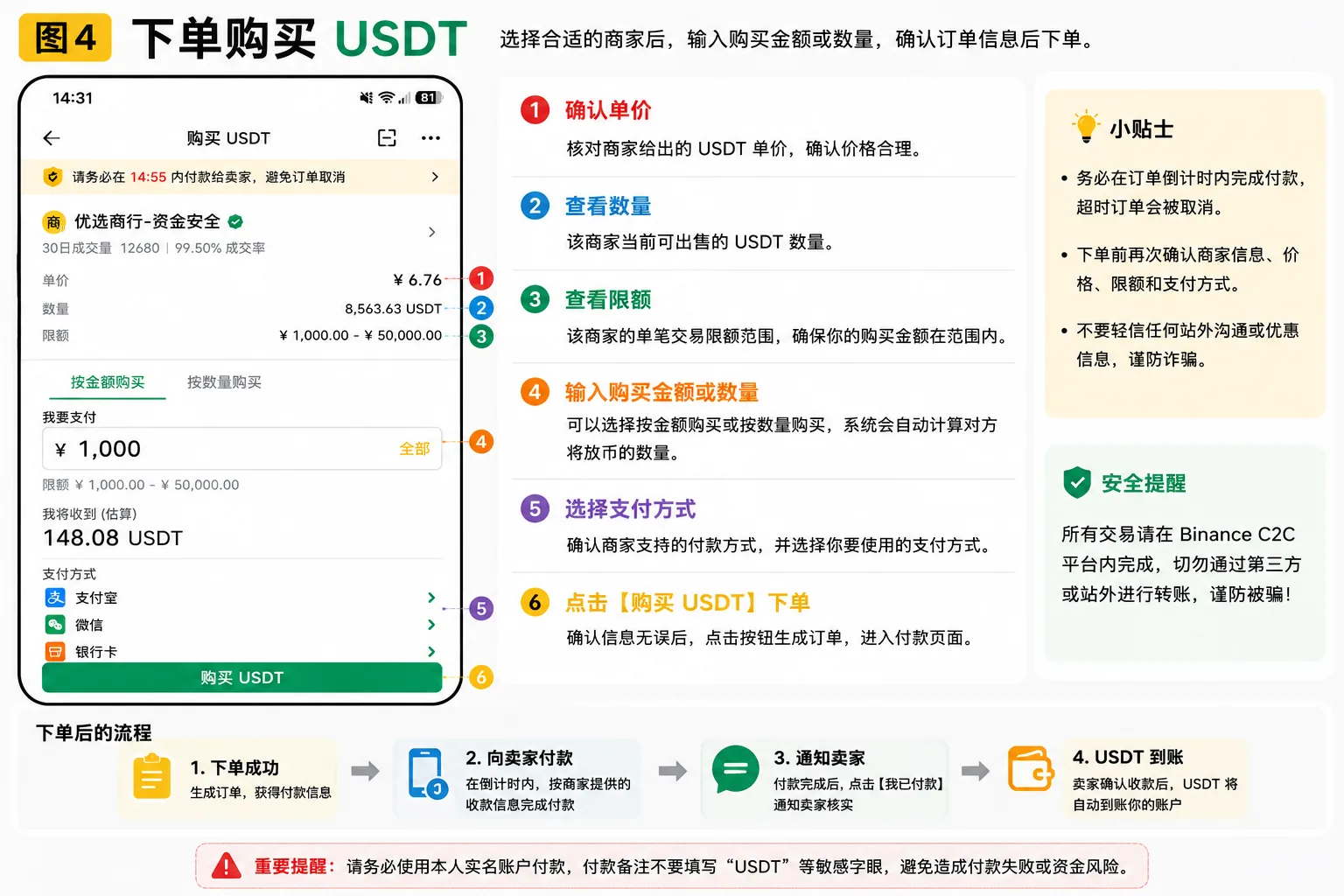
Step 7: After paying, tap "I have paid, notify the seller"
After you actually pay, return to the original Binance order.
Tap:
"I have paid, notify the seller"
Per Binance's general tutorial, the order then enters a "waiting for the seller to confirm receipt" state.[1]
This action notifies the seller that you have actually paid; it is not a second transfer.
You must note:
- Do not tap "I have paid" before you actually pay.
- Do not cancel the order lightly after you have paid.
- If the payment status is unclear, do not pay again.
- If something goes wrong, keep the real bank payment proof.
Step 8: Wait for the seller to release USDT and confirm arrival
Once the seller confirms receipt of the funds, they release the USDT according to the platform process.
First check whether the P2P order status shows completed.
Then open the assets page and confirm the USDT amount matches the completed order.
The sign that you have bought USDT is not just that your bank was charged — it is that the order is completed and the USDT actually arrived in your account.
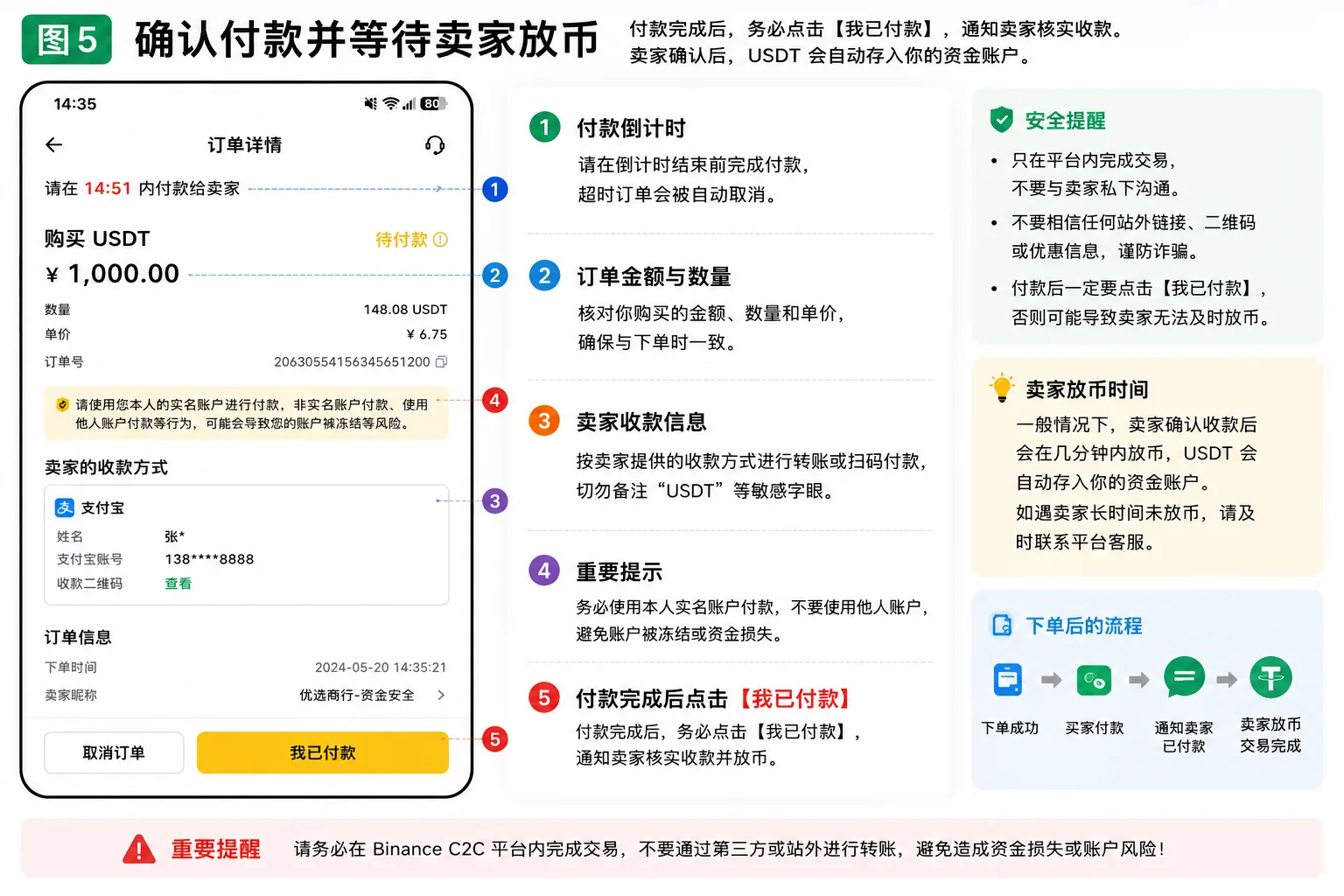
P2P marketplace flow summary
Enter P2P → choose the P2P marketplace → buy USDT → filter sellers → create the order → check the payment details → actually pay → notify the seller → confirm USDT arrival.
If you have paid but have not received USDT, do not place a new order yet; check the order status per Section 9.
5. How to buy USDT in the Binance Express zone
The Express zone is for users who want fewer seller-filtering steps.
In the Express zone, the system matches based on amount, payment method, and currently available ads, but you still need to confirm the order and actually pay.
Express zone full steps
Step 1: Enter the P2P Express zone
Open the Binance app:
Home → Add Funds → P2P → Express.
Step 2: Select USDT and the fiat currency
Select "Buy", then choose USDT and the fiat currency your account supports.
Step 3: Enter the purchase amount
Enter the fiat amount you want to pay or the USDT quantity you want to receive, following the page prompts.
Step 4: Choose a payment method
Tap "Select payment method" and choose from the actually available methods.
Step 5: Preview the matched order
Tap "Preview order" or the corresponding button on the current screen.
Check the actual quote, payment amount, USDT quantity, and order terms.
Step 6: Confirm the order and pay
Pay according to the payment details in the matched order.
After you actually pay, return to the order and tap "I have paid, notify the seller".
Step 7: Check order completion and arrival
Wait for the seller to confirm receipt, then check your USDT balance.
What if the Express zone finds no matching seller?
Not finding a match in the Express zone does not necessarily mean your account is restricted.
Sometimes the trade amount, payment method, or current ads simply do not meet the matching conditions.
| Page situation | What to do |
|---|---|
| No matching order | Check the trade amount and payment method |
| Amount does not meet conditions | Check the trade limits |
| No ad for the payment method | Check other available methods or use the P2P marketplace |
| An order is already in progress | Check the existing order status first |
Binance's Express-zone help notes that a user can have at most two P2P orders in progress at the same time.[2] If you have reached that limit, you need to handle the existing order before creating a new one.
The applicable rules follow what your account currently shows.
6. How to choose a Binance P2P seller: six things to check
When buying USDT in the P2P marketplace, filtering sellers is very important.
High trade volume and a high completion rate can serve as a trade-record reference, but they are not a guarantee that a trade is absolutely safe.
1. Seller historical trade volume
Trade volume reflects how much trading history a seller has.
If two sellers have similar prices, you can use trade volume to understand their historical activity.
But trade volume cannot replace checking the actual order.
2. Order completion rate
The completion rate is an indicator of order completion over the relevant statistics period.
For example:
One seller has a 99% completion rate but few historical orders.
Another has a 98% completion rate but many long-term trades.
Do not judge which seller is more reliable based on a one-percentage-point difference alone.
3. Registration time
A seller's registration time can be a reference for their history.
But "registered for over a year" is not an official Binance safety standard.
A longer registration time does not mean the account cannot have trade disputes.
4. Current trade limits
Some sellers have a higher minimum trade amount; some ads support smaller amounts.
Before placing an order, check that your purchase amount meets the ad requirements. Do not buy more than planned just to satisfy a seller's minimum.
5. Payment method and order terms
Confirm your payment account can use the relevant payment method normally and lawfully.
If a seller asks you to pay to an account outside the order, submit your bank password, or complete the trade in external software, stop and verify.
6. Seller verification badges
Platform verification, "select" or other seller badges can be a reference.
But different zones may have different rules and protection conditions. Do not assume every trade is compensated just because of a badge.
Seller-selection checklist
| Seller metric | How to check |
|---|---|
| Trade volume | Check historical order count and the statistics period |
| Completion rate | Judge historical performance against the trade sample |
| Registration time | Use as a historical reference |
| Trade limits | Confirm your purchase amount meets conditions |
| Payment method | Confirm your account can use it normally |
| Order terms | Check payment requirements and unusual conditions |
The actual order to follow: first check the payment method and amount limits, then the order terms, and finally compare trade history, completion rate, and quotes.
For third-party payment, payment notes, off-platform trades, and bank-card risks, read the Beginner's guide to avoiding P2P pitfalls (2026).
7. Where do you find the USDT after buying it on Binance P2P?
After a normal purchase, you can check in two places: the order record and the assets page.
Step 1: Confirm the P2P order is completed
Open the Binance P2P orders page and find the order where you just bought USDT.
Check whether it is still waiting for the seller to confirm, or already shows completed.
Step 2: Open the assets page to view USDT
Binance's general P2P tutorial describes the default display location of bought assets as the funds wallet.[3]
But different app versions, regions, and account structures may adjust this; follow your actual asset overview and account records.
Step 3: Check the USDT amount you received
Compare the purchase quantity shown on the completed order with the USDT actually in your account.
If the order is completed but a particular asset page shows no balance, check the asset overview and the corresponding transaction record.
Do not conclude your USDT is lost just because one page appears empty.
Do you have to manually transfer USDT after buying it?
Not necessarily.
If your current account structure already allows the asset to be used directly for the next step, you do not need to mechanically do a manual transfer.
If a trading page shows insufficient balance, first confirm which account the asset is in, then handle it according to the current app's functions.
How to check unusual USDT arrival?
| Order status | Next step |
|---|---|
| Awaiting payment | First verify whether you actually paid |
| Waiting for seller to confirm receipt | Check the payment record and order messages |
| Order completed | Check the asset balance and transaction record |
| Order cancelled but you already paid | Keep the payment proof and contact official support |
| Order in dispute | Submit the required evidence per platform requirements |
Buyers should first check the order status, then judge whether it is a payment-processing, seller-release, or asset-display issue.
8. What to do if Binance P2P says "not eligible" when placing an order
If you see "not eligible", "cannot trade", or another failure message when creating an order, first determine whether the problem happened before placing the order or after paying.
Being unable to create an order before paying, and not receiving USDT after you paid, are two different problems.
Common reasons an order fails to be placed
| Possible reason | Direction to resolve |
|---|---|
| KYC not completed | Check your identity-verification status |
| Does not meet the seller's conditions | Check the ad terms and trade limits |
| No matching ad | Adjust filters or switch to the P2P marketplace |
| An order is already in progress | Handle the existing order first |
| Account trading is restricted | Check the platform restriction description and the official review entry |
| Not supported in your region | Confirm service eligibility and applicable law |
In what order should you troubleshoot a failed order?
Step 1: Read the exact message.
Save the specific error message. Do not judge based only on the words "not eligible".
Step 2: Check account verification.
Confirm whether KYC is complete and whether you need to submit additional review materials.
Step 3: Check the seller's ad conditions.
Check whether there are trade limits, buyer eligibility, or other order requirements.
Step 4: Check account function restrictions.
If the current version offers an "unrestriction center" or an account-restriction description, follow the page prompts to see the reason.
Step 5: Request review through the official channel.
If your account function is genuinely restricted, submit real materials as Binance requires.
Do not trust third-party paid unlock or proxy-verification services.
Does cancelling too many orders restrict trading?
Possibly.
Binance's general P2P help document, updated on April 20, 2026, mentions that cancelling three orders in a day may prevent you from using the buy function for the rest of that day.[4]
But the specific counting rules and account restrictions still follow the platform's current on-screen prompts.
For detailed troubleshooting of account restrictions, see the Binance P2P "not eligible" troubleshooting guide.
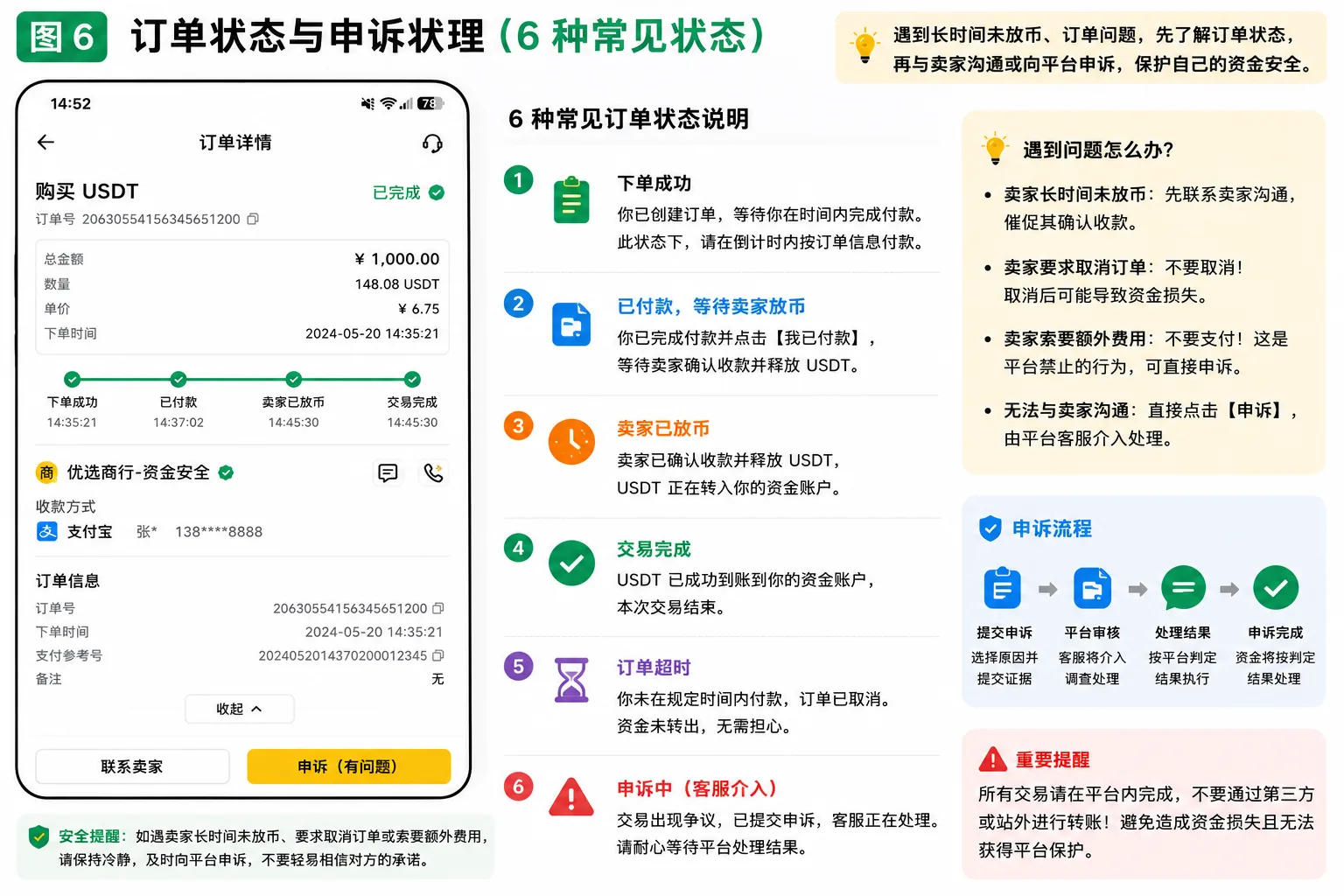
9. What to do if payment fails or the order times out
If a P2P order goes wrong, first confirm whether your payment actually completed.
Case 1: Payment failed
If the bank clearly shows the payment failed, check whether any amount was deducted, then look at the original order.
Do not pay again when the actual payment status is unclear.
Case 2: Payment succeeded, but you forgot to tap "I have paid"
Return to the original Binance order as soon as possible.
If the order still allows action, notify the seller according to your real payment status.
If the order is already closed, keep the payment proof and contact official platform support.
Case 3: The seller has not released USDT after you paid
First confirm the bank payment succeeded, and check whether you notified the seller.
If the seller does not respond, you can contact the seller within the original order and, if necessary, use Binance's dispute function.
Do not cancel an order you already paid for just because the seller asks you to.
Case 4: The order timed out and closed, but funds were deducted
Keep the order number, payment time, and bank transfer proof.
Contact Binance official support to verify. Do not pay the seller again on your own to try to restore the trade.
Case 5: You actually paid more than the order amount
Do not assume the seller will automatically refund the difference.
Keep the payment record and resolve it through the original order and official help channels.
Quick reference for order problems
| Problem | What to do |
|---|---|
| Bank payment failed | Confirm whether any amount was deducted, then check the order |
| Forgot to tap "I have paid" | Return to the original order and check the status |
| Seller has not released USDT | Keep the proof, contact within the platform or dispute |
| Order closed after payment | Keep the original order and payment record, contact support |
| Wrong payment amount | Handle the difference through the official order channel |
For detailed fraud risk, third-party payment, order cancellation, and bank-card restriction handling, see the Beginner's guide to avoiding P2P pitfalls (2026).
10. What are the fees for buying USDT on Binance P2P?
Binance ordinary P2P buy trades usually do not charge an additional platform trading fee, but you should follow the current market and the rules shown on the order.[5]
No extra platform fee does not mean all sellers' quotes are the same.
For example, buying 500 USDT:
| USDT unit price | Cost of buying 500 USDT |
|---|---|
| $1.00 | $500 |
| $1.01 | $505 |
| $1.02 | $510 |
This is only a calculation example, not a real-time P2P quote, and it does not include any payment-service fees that may apply.
Before buying, compare the actual payment amount, USDT quantity, and order conditions rather than just looking at the "0 fees" wording.
Are P2P fees the same as spot trading fees?
No.
| Operation type | Main cost |
|---|---|
| Buying USDT via P2P | Seller quote differences and possible payment fees |
| Spot trading | Trading fees and bid-ask spread |
| USDT on-chain withdrawal | The withdrawal fee of the relevant network |
P2P buying, spot trading, and on-chain withdrawal are three different steps; their fees should not be mixed up.
Does the BN522 fee rebate apply to P2P?
The fee rebate associated with referral code BN522 is calculated according to Binance's currently applicable trading products and campaign rules.
Do not interpret a 20% trading-fee rebate as "buy 100 USDT and get 20 USDT back".
The specific rebate eligibility, trade types, and conditions follow Binance's official pages.
FAQ
1. How do you buy USDT on Binance?
Log in to the Binance app, go to "Add Funds → P2P", choose the Express zone or the P2P marketplace, and set USDT, the amount, and the payment method. Confirm the order, pay, notify the seller, and wait for the assets to arrive. Confirm your account eligibility and identity-verification requirements before trading.
2. Do you need identity verification to buy USDT on Binance?
You usually need to complete the relevant KYC verification. Specific requirements and available services may differ by region; follow your account page.
3. Which is better for beginners: the Express zone or the P2P marketplace?
If you want fewer filtering steps, learn the Express zone; if you want to compare sellers' quotes, completion rates, and trading terms yourself, use the P2P marketplace. Both require you to check the order and payment details.
4. What payment methods can you use to buy USDT on Binance P2P?
It depends on your account's region, the platform's actually available services, seller ads, and payment-provider rules. This may include bank transfer or other supported payment channels, but not every region can use the same payment methods.
5. Is there a fee to buy USDT on Binance P2P?
Ordinary P2P trades usually do not charge an additional platform trading fee, but different sellers' quotes may differ, and the payment service may also charge. Check the final order amount.
6. How long after paying will you receive USDT on Binance?
There is no uniform arrival time. The seller needs to confirm the actual receipt, then release the assets according to the trade process. If the order is abnormal, handle it through the order help or official dispute channel.
7. Where do you find USDT after buying it?
First check whether the P2P order is completed, then check the USDT balance in the Binance asset overview and the relevant account. The asset display location may change across app versions.
8. Do you have to manually transfer USDT after buying it?
Not necessarily. It depends on your current account structure and the feature you need next. If the asset is already in an account you can use, you do not need to transfer it again.
9. Why does Binance P2P say "not eligible" when placing an order?
It may involve identity verification, seller ad conditions, trade amount, current order count, account restrictions, or region eligibility. Check the specific error message first, then troubleshoot item by item.
10. Why does the Express zone have no matching seller?
There may be no ad matching your purchase amount or payment method. Check the tradeable amount, adjust the filters you can lawfully use, or look at the P2P marketplace.
11. I already paid, but the order timed out. What do I do?
Keep the real payment proof and the original order information, contact Binance official support, and do not pay again directly or cancel an order you already paid for.
12. I paid but have not received USDT. What do I do?
First confirm the payment succeeded and check whether you notified the seller, then contact the seller through the original order. If that does not resolve it, submit a dispute following the platform's on-screen prompts. Do not cancel an already-paid order based on a seller's verbal promise.
11. Summary: buying USDT on Binance is about completing the order, payment, and arrival check
Buying USDT on Binance P2P can be summarized as:
Enter P2P → choose the Express zone or P2P marketplace → select USDT → check the seller and amount → create the order → complete payment → notify the seller → check arrival.
For your first purchase, pay special attention to three key steps.
First, before creating the order: confirm trading eligibility, purchase amount, payment method, and seller terms.
Second, before actually paying: check the recipient, recipient account, and order amount, and do not pay to an account the platform has not confirmed.
Third, after payment: return to the Binance order to notify the seller correctly, and check that the USDT actually arrived.
If you encounter order failure, timeout, or non-release, first verify the payment status, then handle it through the official order channel.
For a beginner, being able to independently complete a lawful, compliant purchase and understand each key step matters more than chasing the lowest quote.
Data verification notes
The key facts in this article were checked against Binance's official P2P help documents on 2026-10-16, item by item:
- Order status after payment: after tapping "I have paid, notify the seller", the order enters a "waiting for the seller to confirm receipt" state, and the seller releases after confirming receipt. Source: Binance — How to Buy Crypto via P2P on the Binance App.
- In-progress order limit: a user can have at most two P2P orders in progress at the same time in the Express zone, and must handle existing orders before creating new ones. Source: Binance — How to Buy/Sell Crypto via the Express Zone on the Binance App.
- Bought-asset display location: the official general P2P tutorial describes the default display location of bought assets as the funds wallet; follow your actual asset overview and account records. Source: Binance — How to Buy Crypto via P2P on the Binance App.
- Order-cancellation limit: the general P2P help document updated on 2026-04-20 mentions that cancelling three orders in a day may prevent using the buy function for the rest of that day. Source: Binance — How to Buy Crypto via P2P on the Binance App.
- P2P fees: ordinary P2P buy trades usually do not charge an additional platform trading fee, but different sellers' quotes may differ; follow the rules shown on the order. Source: Binance — How to Buy Crypto via P2P on the Binance App.
Related reading
- Beginner's guide to avoiding P2P pitfalls (2026) — third-party payment, seller non-release, order cancellation, and bank-card risks
- Binance P2P "not eligible" troubleshooting guide — troubleshooting order failure, account restrictions, and seller eligibility
- Binance registration guide — registration, identity verification, and basic account setup
- Binance KYC: How to Verify Your Identity (2026) — complete identity verification before your first buy
- Binance withdrawal: which network to choose? TRC20, ERC20, BEP20 fees and arrival time — USDT on-chain transfers, network selection, and withdrawal fees
Official references
1. Binance: How to Buy Crypto via P2P on the Binance App
https://www.binance.com/en/support/faq/detail/360039384951
Officially updated on 2026-04-20, covering the P2P marketplace and Express zone, creating orders, payment, notifying the seller, and viewing the funds wallet.
2. Binance: How to Buy/Sell Crypto via the Express Zone on the Binance App
https://www.binance.com/en/support/faq/detail/1cc1ea310da2493ebf530cb8358712db
Covers Express-zone matching, payment methods, order preview, and handling unmatched ads.
Disclaimer: This article helps readers understand how to buy USDT via Binance P2P and does not constitute investment, financial, legal, or tax advice. Crypto trading can involve fraud, market risk, payment disputes, loss of funds, account-security, and regulatory restrictions. Readers should understand the applicable laws in their location and the platform's service requirements, and assess the relevant risks themselves.
- Binance — How to Buy Crypto via P2P on the Binance AppP2P flow, order creation, payment, notifying the seller, and checking the funds wallet
- Binance — How to Buy/Sell Crypto via the Express Zone on the Binance AppExpress-zone matching, payment methods, order preview, and handling unmatched ads
- 2026-10-16UpdateAdded evidence-chain citations and "Data verification notes", and updated the last-verified date.
- 2026-10-08UpdateReorganized around "how to buy USDT on Binance", strengthening the buy steps, payment confirmation, arrival check and order-failure handling, and trimming risk and next-step content.
See ourEditorial Policy and the correction process in ourCorrections Policy.
The CoinTrailHub editorial team focuses on crypto education for beginners, exchange security and P2P trading risk. This article is compiled from official sources and public data, reviewed by humans, and strives for accuracy but is not investment advice.
Last updated:2026-10-08 · Content reviewed by humans · Learn more
© 2026 CoinTrailHub · Original content. Reproduction or rewriting without permission is prohibited.