
Binance Android App Won't Install? Fix APK Parse Errors, Conflicts & Security Warnings (2026)
Table of contents

Binance new user rewards
20% trading fee rebate
Official Binance registration. Complete identity verification (KYC) to trade and withdraw.
Binance Android app won't install? Look at the system error first — don't rush to uninstall or re-download.
- "Problem parsing the package": open "File manager → Downloads", check whether the APK downloaded completely; if the file is abnormal, delete it and re-download.
- "App not installed": open "Settings → Storage" to check space; if you've installed Binance before, continue checking for old-version conflicts.
- "Conflicts with an existing app": keep the old version and prefer updating through the original official channel.
- "Installing unknown apps isn't allowed": after confirming the APK source, find the install permission for the browser or file manager.
- "Security threat detected": stop the install immediately, check the risk details, and don't bypass the security protection.
Work through the errors one by one below. After each step you'll know whether it's fixed, and what to check if it isn't.
About 9 minutes to read. Remember two things first: the five errors map to five fixes — don't use one method for every case; and when you see "security threat detected", stop first and don't force the install by turning off security protection.
1. Binance won't install? Start with this error table
| Error your phone shows | What to do first |
|---|---|
| Problem parsing the package | Delete the failed APK and re-download |
| App not installed | Check storage space and existing apps |
| Conflicts with an existing app | Keep the old version and check the update source |
| Installing unknown apps isn't allowed | Check the browser or file manager install permission |
| Security threat detected | Stop the install and check the risk details |
| Installed but won't open / crashes | Restart, update, clear cache |
Go directly to the section that matches your phone's error. If a different error appears after you act, handle it according to the new prompt.
2. Binance APK parse error? Follow these 4 steps
If your phone shows "problem parsing the package", "failed to parse the package" or "invalid installer", first check whether the file is corrupt.
Step 1: Check the download history and re-get the APK if needed
Open your phone's "File manager → Downloads", find the Binance APK you just downloaded, check the download time, and confirm the browser shows "download complete".
If the download was interrupted, the file is corrupt, or you can't confirm the current file is complete, delete this download and get it again from an official Binance channel.
What you delete here is the APK installer, not the Binance app already installed on your phone.
Step 2: Re-download the official installer
Open your phone browser and go to the Binance official website's app download page.[1]
- Choose Android download.
- Wait for the browser to show "download complete".
- Open the newly downloaded installer.
- Install following the Android system prompts.
Don't keep tapping a file that already failed to download, and don't use modified versions from group chats, cloud drives or third-party APK sites.
Step 3: Check whether it installs now
After reinstalling, continue depending on what actually happens:
- Shows "install complete": the install is done — open Binance and confirm it runs normally.
- Changes to "app not installed": go to Section 3 to check space, old version and system restrictions.
- Shows "installing from this source isn't allowed": go to Section 5 to check the install permission.
- Still shows "problem parsing the package": continue to Step 4.
Step 4: Check the Android system version
The browser showing "download complete" doesn't mean the file necessarily fits your current Android system. If parsing still fails after re-downloading, check the system version and file format.
Open:
Settings → About phone → Android version
On some devices the path is:
Settings → System → About device
Note your current Android version, then check the system requirements shown on the Binance official download page or the official app store page.
If your system is below the requirement:
- Open "Settings → System update".
- See whether the device manufacturer offers an official update.
- After updating, get a suitable installer from an official channel again.
If your system already meets the requirement but parsing still fails after re-downloading, keep the device model, Android version and full error screenshot, and check file compatibility further or contact official support.
If the current file is in a format the system can't install directly, don't rename the extension yourself and don't use unfamiliar APK install tools.
3. Binance shows "app not installed" — what now?
If Binance was already on your phone and this was just a failed update, skip to Section 4.
If your phone only shows "app not installed" without a reason, check the following three steps.
Step 1: Check remaining storage space
Open:
Settings → Storage
Check the phone's remaining space.
If it's nearly full:
- Delete unneeded videos and large download files.
- Clean up temporary files in other apps that are safe to remove.
- Return to the Binance installer and try installing again.
Installing may need extra temporary storage space — don't judge only by the APK file size.
If there's plenty of space but it still says "app not installed", continue to the next step.
Step 2: Check whether Binance is already on the phone
Open:
Settings → Apps → Binance / 币安
If you can find Binance, the phone already has an app record.
There are two cases:
- The old version still opens normally: keep it and check the update conflict in Section 4.
- Binance isn't found: continue checking system compatibility and install restrictions.
Don't uninstall the old version when you don't understand the cause.
Step 3: Reinstall and read the full prompt
Open the phone settings, check the Android version, and verify the official app support requirements.
Then try installing again.
If the system shows "view details", "learn more" or an error code, open it and take note.
If the device is managed by a company, school or other administrator, also check whether there's an app-install restriction.
Success criteria: the phone shows "install complete", Binance appears in the app list, and it launches normally when tapped.
Still failing: save the full error, device model, system version and install source — don't keep blindly clearing app data.
4. Binance update failed or conflicts with an existing app — how to fix it?
If Binance worked before but this update shows "conflicts with an existing app", "can't overwrite install" or "update failed", don't delete the old version first.
Judge your situation:
- Old version still opens normally: keep it and check whether the original official channel offers an update.
- Old version won't open but the system still shows it as installed: first confirm your login and wallet-recovery conditions, note the version and error, then ask official support whether reinstalling applies.
- Installer source is unclear: stop the overwrite install, re-confirm the official channel, and don't force the install.
Step 1: Check the version of the installed Binance
Open:
Settings → Apps → Binance → App info
Note the current version number.
If an install source is shown, note that too.
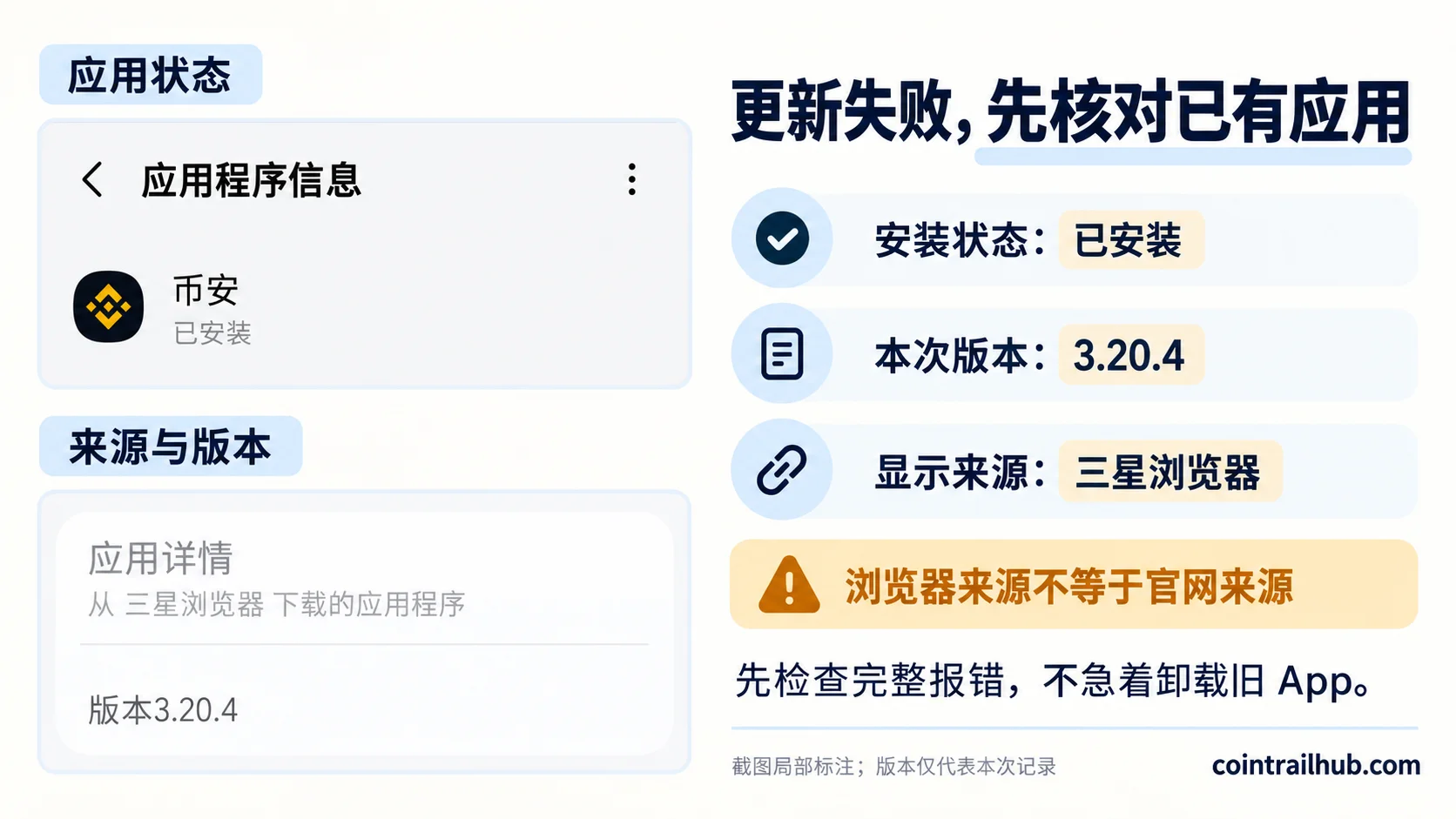
This is a real app-info screenshot of a historical version, shown only to illustrate where the setting is. The source showing "browser" doesn't mean the APK necessarily came from the Binance official site.
Step 2: Try updating from the original official channel
If the old version came from the official app store, open that store and see whether it offers an applicable update.
If it was originally installed through the official APK, check the current install method on the Binance official download page.
Don't force-overwrite the old version with a new APK of unknown origin.
Step 3: Still conflicting? First confirm you can recover login
Before considering a reinstall, confirm:
- The email or phone number bound to your Binance account still works.
- Your password and two-factor verification tools work normally.
- If you use the app's self-custody wallet, you've confirmed the applicable wallet-recovery method.
Uninstalling an exchange app usually doesn't delete the assets recorded on the exchange's servers, but it may clear the local login state and app data.
If a self-custody wallet is involved, you can't judge whether you can recover it by the exchange account password alone.
Step 4: Keep the old version and handle the ongoing conflict
If the official update still fails:
- Note the old app version number.
- Note the version of the installer you downloaded this time.
- Save the full conflict prompt.
- Check the update method with Binance official support.
Only consider uninstalling and reinstalling once you've confirmed reinstalling is truly necessary and the login and wallet-recovery conditions are ready.
Success criteria: the update completes, the app opens normally, and the app info shows the updated version.
5. Binance says "installing unknown apps isn't allowed" — what now?
If your phone shows "for security, installing apps from this source isn't allowed", the browser or file manager that launched the install probably doesn't have the corresponding permission yet.
Only follow the method below once you've confirmed it's a source-permission issue, the installer is trustworthy, and there's no harmful-app warning.
Step 1: Confirm which app opened the APK
If you opened the APK directly through Chrome, Edge or another browser, check that browser's install permission.
If you opened the APK in a file manager, check the file manager's permission.
Don't assume you must grant "install unknown apps" to the Binance app itself.
Step 2: Open the Android install-permission settings
Try:
Settings → Apps → Special app access → Install unknown apps
If you can't find it, open the search box in Settings and type:
"Install unknown apps"
Find the browser or file manager that launched this install in the results.
Step 3: Check the install permission
Confirm the APK came from a trusted official channel and the system hasn't flagged it as a harmful app.
If the system allows granting install authorization for this source:
- Enter the permission page of the corresponding browser or file manager.
- Grant the permission needed for this trusted install following the current system prompt.
- Return to the downloaded file and start the install again.
- After installing, revoke any extra install permission you no longer need.
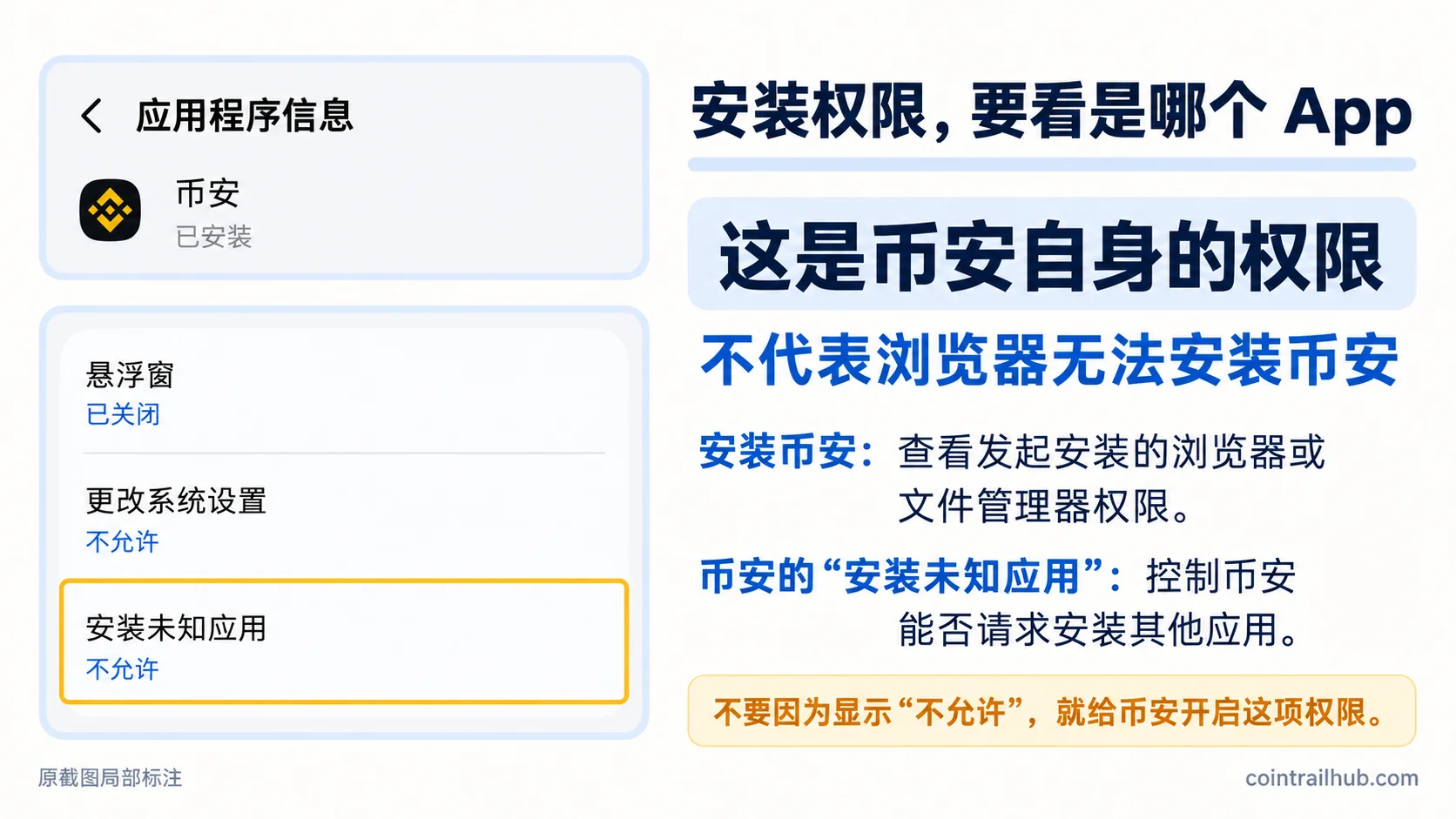
This screenshot is the "install unknown apps" permission page for the Binance app itself (shown as "not allowed"), used only to illustrate that you don't need to enable this permission for Binance. What Section 5 actually operates on is the browser's or file manager's permission page — these are not the same page. The screenshot is for reference only; the actual interface depends on what your phone currently shows.
Step 4: Reinstall and confirm the result
If the original source-permission prompt is gone and the system enters the install screen normally, this permission obstacle may be resolved.
If it now shows "problem parsing the package" or "app not installed", handle it according to the corresponding section.
If it shows "security threat detected", don't keep opening permissions — go to the next section.
6. The Binance installer says "security threat detected" — what now?
If your phone shows:
"Security threat detected — we recommend not installing this app."
Tap Cancel first and pause the install.
This kind of warning can't be lumped together with an ordinary "unknown-sources permission not enabled".
Step 1: Save the full risk prompt
Screenshot and note:
- The complete warning text the system shows;
- Whether there's a "view details";
- The version of the installer this time;
- The install stage where the warning appeared.
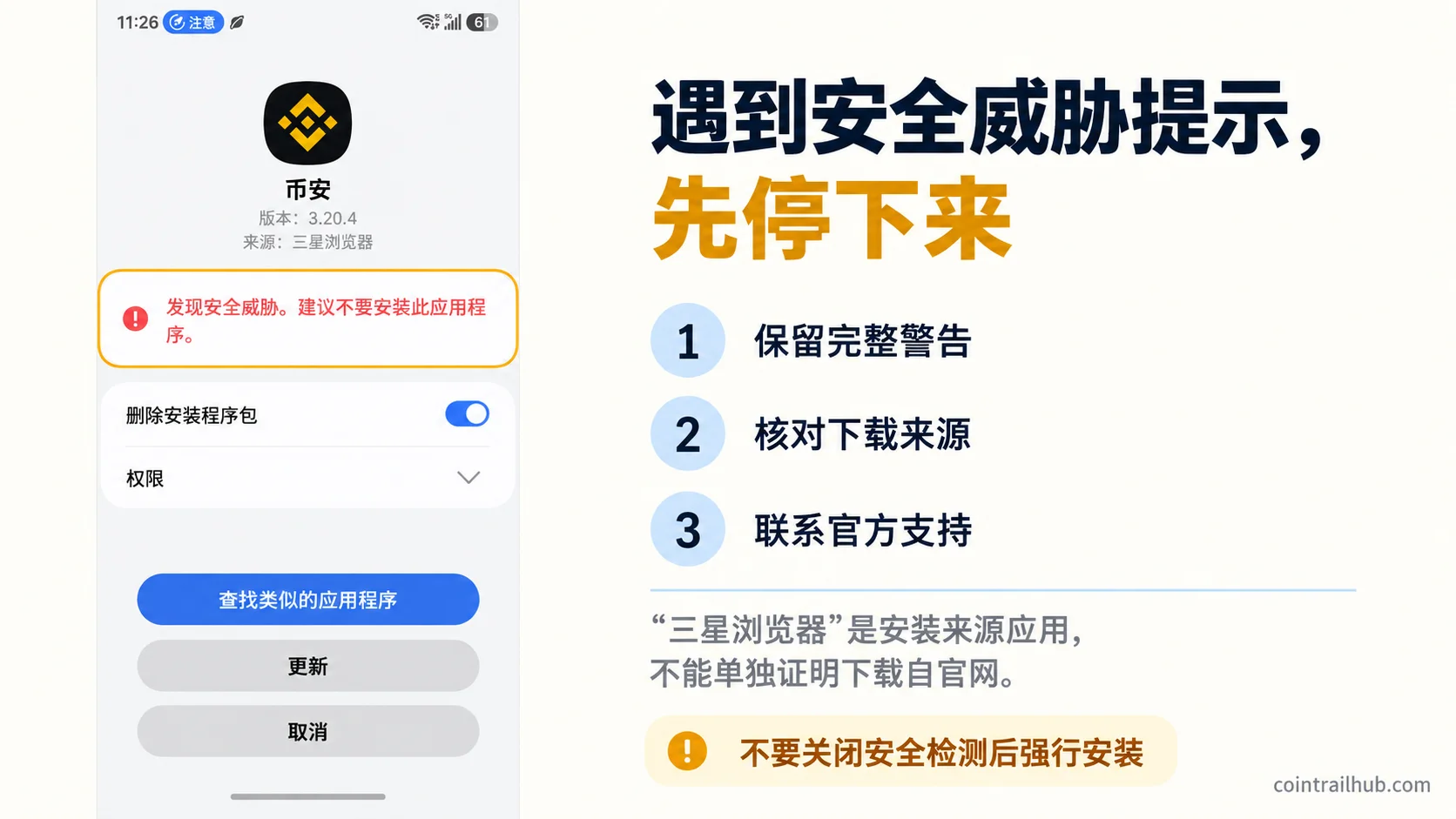
A real screenshot showing the security-threat prompt and a historical app version. It doesn't mean the warning has been confirmed as a false positive.
Step 2: Check the installer's source
Return to the browser download history and check the APK's actual download entry.
Confirm whether it was obtained through the Binance official website or a channel it explicitly provides.[2]
Don't rely only on the filename, icon or app name. None of them can independently prove an installer is safe.
Step 3: Handle by warning type
| Warning you see | Next step |
|---|---|
| Recommends a security scan | Keep the scan and check the results |
| Potentially harmful app found | Stop the install and check the specific risk |
| Security feature directly blocks the install | Don't bypass the block; contact official support to verify |
| Only says the install source lacks permission | Check the file source and handle per Section 5 |
Google Play Protect may check, warn about or block apps from other sources. Don't "prove" an installer is fine by turning off the security scan.[3]
Step 4: What if the warning keeps appearing?
Stop the install and verify through Binance official support or a device security service.
Don't treat "install succeeded" as "security verified".[4] Even if the app opens, you can't conclude the earlier risk prompt was definitely a false positive.
7. Binance installed but won't open or crashes — what now?
If the phone shows "install complete" but opening Binance immediately exits, shows a black screen or gets stuck on the splash screen, follow the order below.
Step 1: Force stop and reopen
Open:
Settings → Apps → Binance → Force stop
Tap it, return to the home screen, then reopen Binance.
If it enters normally, you can keep using it and watch whether it recurs.
Step 2: Restart the phone
If it still crashes, restart the phone normally and try opening it again.
Step 3: Check for updates
Check through a trusted official channel whether a newer Binance app version is available.
At the same time, open the phone's:
Settings → System update
See whether there's an official system update.
Step 4: Clear the app cache
Open:
Settings → Apps → Binance → Storage / Storage & cache
If there's a "Clear cache" option, you can use it.
But don't tap "Clear data" or "Clear storage" by mistake.
These can delete local login info, app settings or wallet-related data — confirm your recovery conditions first.
Step 5: Still crashing?
Note the time, screen and system version when the crash happened after launch, and troubleshoot further through official support.
Success criteria: Binance opens normally and reaches the expected screen, not just briefly showing the splash logo.
8. All the above failed — what's next?
If you've completed the relevant steps and still can't install, you don't need to run through every method again.
Before contacting Binance official support, prepare this info:
| Info to provide | Where to find it |
|---|---|
| Phone model, Android version | Settings → About phone |
| Current Binance version | Settings → Apps → Binance |
| Download source this time | Browser download history |
| Full error content | Install screen screenshot |
| Methods already tried | Note the corresponding steps and results |
This info helps official support distinguish file corruption, compatibility, update conflicts and install restrictions.
Don't give support staff or anyone else your account password, verification code, wallet seed phrase or private key.
If the system clearly reports malicious behavior or a high-risk install, stop until the risk cause is verified.
9. Binance Android install failure FAQ
Binance APK parse error — what if re-downloading still fails?
Open "Settings → About phone", check the Android version and verify Binance's current compatibility requirements. If the system meets the requirements but still errors, note the file version and the full error prompt, and verify further through official support. Don't repeatedly install the same failed file.
Binance says "app not installed" — do I need to uninstall the old version first?
No. First check storage space, system version and the old app's state. If the old version still runs normally, keep it and prefer updating from the original official channel. Only consider a necessary reinstall after completing account and wallet-recovery preparation.
Binance install prompts about unknown sources — where do I enable the permission?
Open the phone settings, search "install unknown apps", and find the browser or file manager that actually opened the APK. After confirming the file source is trustworthy and the system has no harmful-app warning, handle the permission following the process your device allows.
The Binance installer warns about a security threat — can I ignore it?
Not recommended. Pause the install first and check the download channel and the full warning. If the system reports a potentially harmful app or blocks the install, don't turn off security detection to bypass it — verify through official support.
Will a failed Binance app install affect the coins in my account?
An ordinary exchange app install failure usually doesn't change the asset record on the exchange account, but it may affect the local login. If you use the app's self-custody wallet, uninstalling or clearing data may affect recovery, so confirm the wallet-recovery method in advance.
10. Related tutorials and resources
- How to Download the Binance Android App? 2026 Official APK & Google Play Guide
- Binance registration tutorial 2026: ID KYC + face verification full flow (20% rebate · tested)
- Binance Account Hacked? 4-Step Recovery + 5 Causes
- Binance official app download page
- Google Play Protect official help
Data verification notes
The key facts in this article were checked on 2026-10-16 against Binance's official download page and the Google Play Protect official help, point by point:
- Official installer download channel: when re-getting the Android installer, enter the Binance official website's app download page through your phone browser — don't use modified versions from group chats, cloud drives or third-party APK sites. Source: Binance official app download page.
- How to check the APK's actual source: return to the browser download history to check the APK's actual download entry and confirm whether it was obtained through the Binance official website or a channel it explicitly provides; the filename, icon and app name cannot independently prove the installer is safe. Source: Binance official app download page.
- Google Play Protect's blocking behavior: Google Play Protect may check, warn about or block apps from other sources, so don't "prove" an installer is fine by turning off the security scan. Source: Google Play Protect official help.
- Install success isn't security verification: even if the app opens normally, you can't conclude the earlier risk prompt was definitely a false positive; stop the install and verify through Binance official support or a device security service. Source: Google Play Protect official help.
Disclaimer
The screenshots only show the interface that the corresponding device displayed at the time; they don't mean every fault has been reproduced on all Android devices, and they aren't a security certification of the installer. Actual menus, system compatibility and install methods are subject to the device and Binance's current official information. This article is an app-troubleshooting tutorial, not investment advice.
- Binance official app download pageOfficial Android installer download channel
- Google Play Protect official helpHow Play Protect checks apps from other sources
- 2026-10-16UpdateAdded evidence-chain superscripts and Data Verification Notes; updated the key-fact verification date.
- 2026-10-04UpdateReworked the opening into a "one-sentence definition + first identify your case + direct decision" three-part structure; added package name com.binance.dev to the official-app identification.
- 2026-10-11UpdateRestructured into a "match the error to the fix" troubleshooting flow; removed the domestic-phone-brand section; consolidated the FAQ to 5 items; kept the three real screenshots.
See ourEditorial Policy and the correction process in ourCorrections Policy.
The CoinTrailHub editorial team focuses on crypto education for beginners, exchange security and P2P trading risk. This article is compiled from official sources and public data, reviewed by humans, and strives for accuracy but is not investment advice.
Last updated:2026-10-11 · Content reviewed by humans · Learn more
© 2026 CoinTrailHub · Original content. Reproduction or rewriting without permission is prohibited.